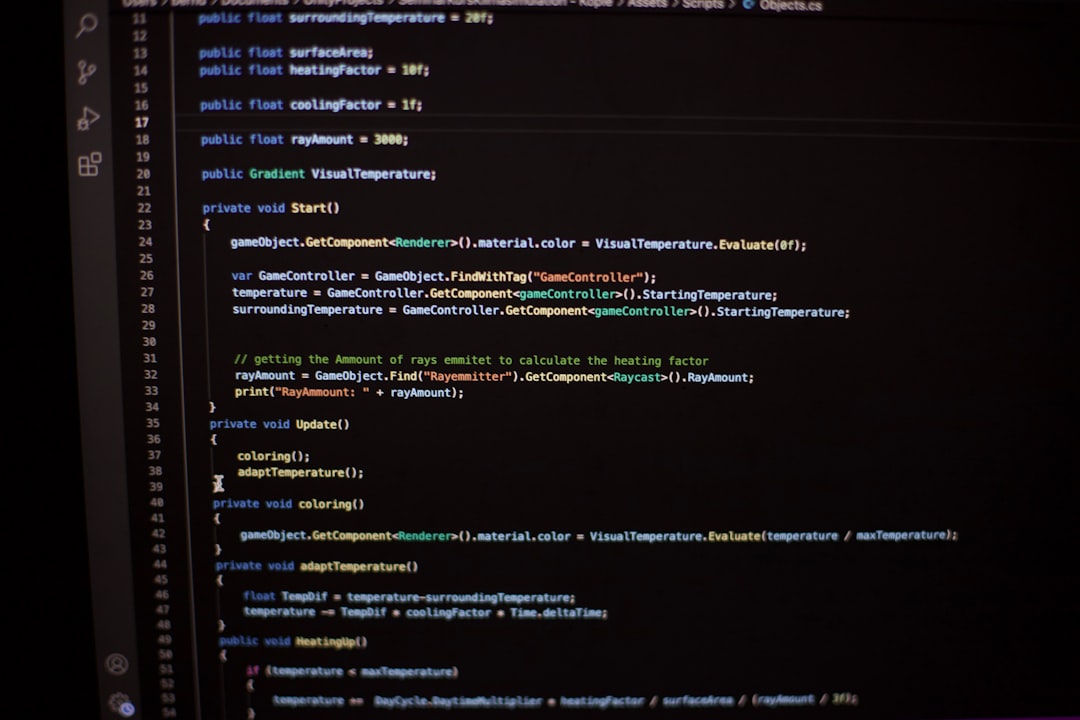
VS Code updates are exciting. They bring new features, speed boosts, and sometimes… a mess. Have your extensions stopped working after an update? Don’t panic! You might not need to reinstall everything. Let’s walk through a fun and simple workflow to bounce back without breaking a sweat.
TLDR
If your VS Code extensions broke after an update, don’t uninstall or reinstall the entire thing. Instead, try disabling extensions and reloading, clearing the extension cache, or manually reverting a version. Most times, it’s one or two extensions causing chaos. With a step-by-step approach, you can recover quickly and get back to coding magic.
1. First, Take a Breath (and a Coffee)
Before jumping into the terminal or clicking uninstall like it’s a panic button, relax. Broken extensions aren’t the end. Often, it’s a small compatibility glitch.
2. What’s Really Broken?
Start by identifying what’s not working. Is it:
- An extension that won’t load?
- A feature of an extension that’s buggy?
- The entire VS Code running slow or crashing?
Open the View → Output panel. Select “Log (Extension Host)” from the dropdown. Any red warnings? Copy them. They’re your clues.
3. Disable and Reload
Sometimes, extensions just need a nap.
- Go to the Extensions Panel (Ctrl+Shift+X)
- Disable some or all non-essential extensions
- Reload VS Code
Now, slowly re-enable extensions one by one. This helps identify the culprit, like a detective uncovering the rogue plugin.
4. Clear the Extension Cache
Extensions store data. Sometimes, it turns into junk.
Here’s how to dump the cache:
- Close VS Code
- Navigate to the extensions directory:
- Windows: %USERPROFILE%\.vscode\extensions
- Mac/Linux: ~/.vscode/extensions
- Sort folders by date modified. Delete ones that belong to broken extensions (or move them temporarily)
Now reopen VS Code. It rebuilds what it needs fresh and clean!

5. Check Compatibility and Version Notes
Sometimes, the extension wasn’t ready for the update.
Visit the extension’s page on the VS Code Marketplace. Check:
- Is there a compatibility warning?
- Does the “Version History” say it supports your VS Code version?
If not—hang tight. A fix is probably coming soon. You can also roll back just the extension.
6. Install an Older Version of the Extension
Here’s a cool trick most people don’t know:
- Open the extension in the Marketplace
- Click “Version History”
- Choose an earlier version that worked for you
- Copy the .vsix file URL (end of the page)
- Download it
- Install manually from VS Code:
- Click the three-dot menu in the Extensions view
- Select “Install from VSIX“
- Pick the downloaded file
Voila! You’re back to a stable version of the extension. Just disable auto-updates for that extension if needed.
7. Roll Back VS Code (Local Time Travel)
This one’s a bit heavier, but still doable if nothing else works.
- Uninstall current VS Code (don’t touch your settings)
- Download an earlier release from the archives
- Install it
- Disable auto-update in settings or via system tools
It’s like setting your DeLorean for last week. 🚗💨
8. Backup and Sync Settings (Preventative Heaven)
Before future updates wreck your zen, back up your setup!
- VS Code has built-in Settings Sync (Settings → Turn on Settings Sync)
- It saves your extensions, themes, shortcuts, and more
- Link it to GitHub or Microsoft account
Also, consider exporting using @shan.code-settings-sync extension for even more control.
9. Community to the Rescue
Found a weird bug or new broken behavior? You’re not alone.
- Search Reddit’s r/vscode
- Look at GitHub Issues for broken extensions
- Tweet at the extension author (nicely!)
The community often posts quick workarounds until official fixes land.

10. Bonus: Use Extensions Profiles
VS Code now supports Profiles — separate environments for different projects.
You can:
- Create a Python profile with only Python tools
- Have another for JavaScript
- Test new extensions in a third sandbox profile
This limits future update wreckage and keeps things tidy.
Wrap-Up: Don’t Let One Update Slow You Down
VS Code is powerful. Yes, it occasionally has hiccups after updates, but you don’t have to start from scratch.
With smart steps, some cache clearing, and version checking, you can solve most problems in under an hour. That’s less time than watching one episode of your favorite series.
Now go reclaim your flow, fix your extensions, and code like the hero you are!