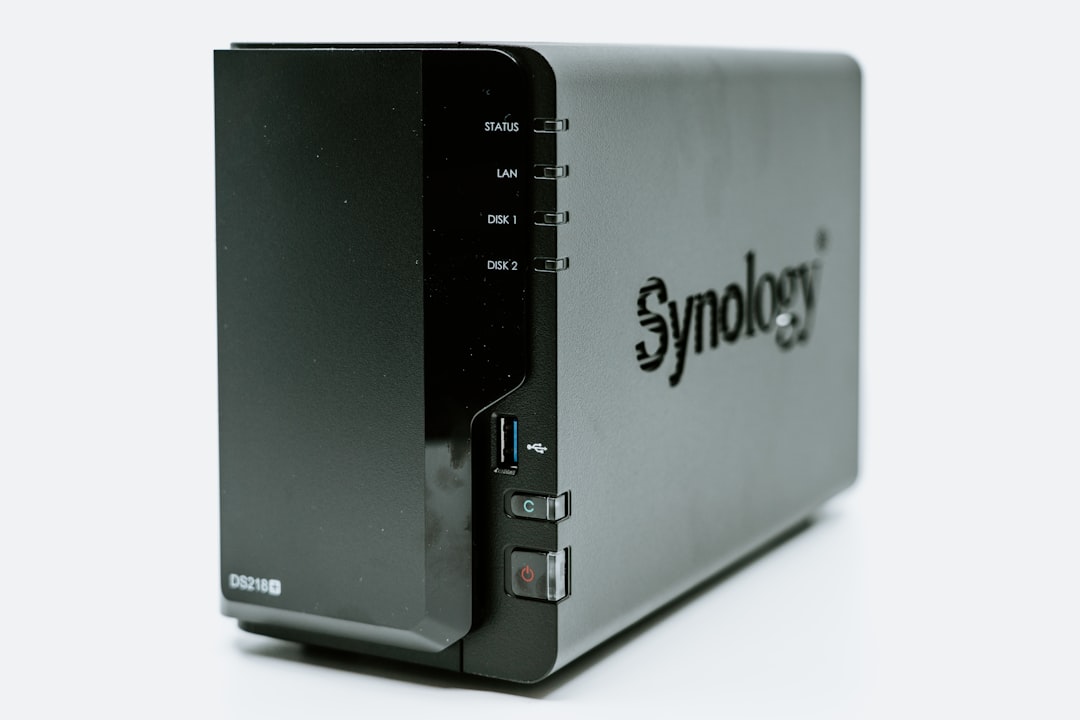
Your Synology NAS is awesome. It stores your stuff, streams your media, and keeps your digital life neat and tidy. But if it’s exposed to the internet (even just for remote access), it’s vulnerable. Hackers from across the globe might already be knocking at the door!
Let’s stop them. Let’s block all IPs from countries you don’t want touching your beloved NAS.
TL;DR
You can block IPs from outside your preferred countries right from your Synology NAS using built-in tools. This usually involves setting up firewall rules or enabling GeoIP-based protection. You don’t need to be a tech wizard — just follow along and take it step by step. Your NAS will breathe a sigh of relief when you’re done!
Why Even Bother Blocking Outside IPs?
Here’s the thing — most cyber attacks come from random places. Countries you might not even have heard of, trying to brute-force your passwords or scan for weak points.
If you’re only accessing your NAS from, say, the US or UK, there’s no reason to let the rest of the world connect to it. That’s like locking your front door but leaving the back wide open for everyone else!
So — let’s start sealing those digital windows and closing the unnecessary doors.
Step-by-Step: Blocking Outside-Country IPs
Step 1: Log in to DSM (DiskStation Manager)
- Open your browser
- Type in your NAS’s address (
https://yourNASaddress:5001) - Log in with your admin account
Welcome to your NAS’s dashboard. The control center of all things Synology.
Step 2: Go to Control Panel
Once you’re in DSM, click on Control Panel. This is where all the settings live — network, users, security, and yes… firewalls.
Step 3: Open the Firewall
- Click on Security
- Then go to the Firewall tab
- Hit Edit Rules if you already have a rule set, or Create to start fresh
This is where you decide who gets in and who doesn’t.
Step 4: Choose Your Network Interface
If you have multiple network adapters (for example, LAN 1 and LAN 2), you’ll need to select which one you want these rules to apply to. Most users are fine just picking LAN 1.
Step 5: Create a GeoIP Rule
Let’s create a rule that permits or denies countries based on their IP range.
- Click Create → Allow or Deny rules
- Under Source IP, switch from All to Location
- Select the Countries you want to allow (or deny) — start typing and you’ll see options like United States, United Kingdom, etc.
- Set the Action (Allow or Deny)
- Apply this rule to ports like All ports or customize as needed
Pro Tip: Place your GeoIP rule above other general allow rules! Firewall rules are processed top-to-bottom.
Step 6: Save Your Firewall Rules
Click OK and apply. Your NAS may pause for a moment to update its firewall settings — that’s normal.
Step 7: Test Your Setup!
- Try accessing your NAS through a VPN from a denied country (if you can)
- You can also use websites like YouGetSignal to check open ports
If done right, the blocked countries won’t even be able to knock.
Bonus Option: Enable Auto Block for Suspicious Activity
In DSM, go to Security → Account tab → Auto Block.
- Turn on Auto Block
- Set to block an IP after X failed login attempts
- This adds an extra layer for bad actors slipping through the cracks
A brute-force attempt from anywhere will be short-lived!
Want to Go Nuclear? Use a Blocklist
You can go a step further and import massive IP deny-lists using the Synology package center.
Install: pfBlocker or IPBlocker via Docker, or use 3rd-party tools
These can auto-update lists of known bad IPs from certain countries or attack sources. A bit nerdy, but very powerful.
Wait, Is This Going to Mess Up My Access?
Good question. Don’t lock yourself out.
Always test your rules *before* you disconnect. If possible, have a backup way in — like connecting directly through local IP, or making an exception for your home IP address before going full blacklist on the world.
Pro Tip: Consider using Synology’s QuickConnect as a backup entrance. It runs through Synology’s relay servers and isn’t affected by your own firewall rules.
Other Fun Things to Consider
- 2FA it up: Two-factor authentication adds huge protection, regardless of where the IP comes from
- Update DSM: Always keep your NAS firmware up-to-date to patch vulnerabilities
- Turn off what you don’t use: FTP, Telnet, and other ancient services = big security holes
Final Thoughts
Your Synology NAS is like a cozy cabin in the woods. It’s stocked full of treasures. You wouldn’t want random strangers peeking in through the windows, would you?
Blocking outside-country IPs is an easy, effective way to cut down on noise, attacks, and weird log files from places you’ve never been. You’ve got the tools — now go armor up that digital cabin!
Now enjoy your safer, quieter, more peaceful NAS. 😊