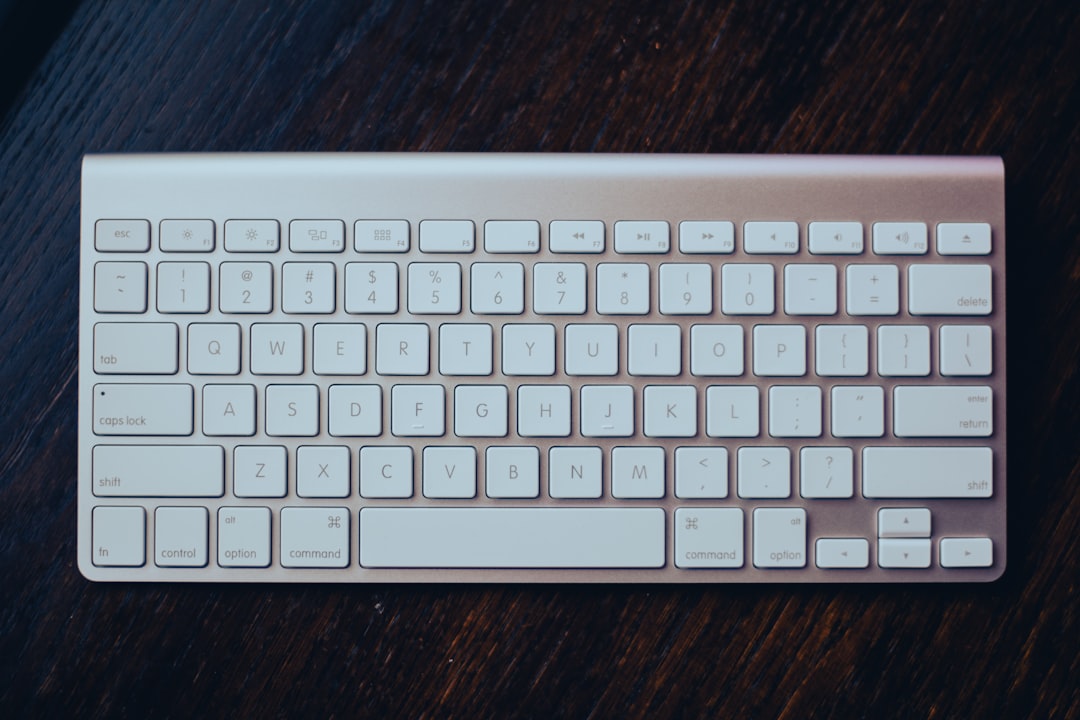
For many Mac users, the Command + Shift + 4 keyboard shortcut is an essential tool for capturing selected portions of the screen. When this shortcut suddenly stops working, productivity can drop instantly—especially for designers, writers, developers, and support teams who rely on screenshots daily. Fortunately, most issues behind this problem are easy to diagnose and fix with a few structured troubleshooting steps.
TLDR: If Command + Shift + 4 is not working on macOS, the issue is usually caused by keyboard settings, shortcut conflicts, storage problems, app interference, or system glitches. Users should first verify screenshot shortcut settings, restart their Mac, and check storage permissions. Resetting NVRAM, reviewing keyboard layouts, and booting in Safe Mode can also resolve deeper issues. In most cases, the fix takes only a few minutes.
Why Command + Shift + 4 Matters
The Command + Shift + 4 shortcut allows users to capture a customizable portion of their screen. When pressed, the cursor turns into a crosshair, letting the user drag and select a specific area.
This functionality is widely used for:
- Creating tutorials and guides
- Reporting bugs or errors
- Sharing visual feedback
- Documenting online receipts or confirmations
When this shortcut fails, it can disrupt workflows significantly. Below are proven methods to diagnose and fix the issue.
1. Check Screenshot Shortcut Settings
The first and most common reason the shortcut stops working is that it has been disabled or reassigned.
To check this:
- Open System Settings (or System Preferences).
- Go to Keyboard.
- Select Keyboard Shortcuts.
- Click Screenshots in the left menu.
Make sure “Save picture of selected area as a file” is enabled and assigned to Command + Shift + 4. If it isn’t:
- Enable the checkbox.
- Reassign the shortcut manually.
If the shortcut shows a warning symbol, another function may be using the same key combination.
2. Look for Shortcut Conflicts
Some third-party applications—especially screenshot tools, clipboard managers, or screen recording apps—can override macOS shortcuts.
Common conflicting app types include:
- Screen recording software
- Custom keyboard mapping tools
- Gaming keyboard software
Users should:
- Close any recently installed apps.
- Disable keyboard customization software temporarily.
- Test the shortcut again.
If the shortcut works after quitting a specific app, the issue is confirmed as a conflict. The user can then either reconfigure the app’s shortcut settings or uninstall it.
3. Restart the Mac
While simple, restarting resolves many temporary macOS glitches. Background processes sometimes hang or interfere with screenshot functionality.
Steps:
- Click the Apple menu.
- Select Restart.
- After rebooting, test the shortcut.
If the crosshair appears, the problem was likely temporary system instability.
4. Check Storage Space
Screenshots are saved to the desktop (or a custom folder). If storage is full, macOS may fail to complete the screenshot process.
To check storage:
- Go to Apple menu > About This Mac.
- Click Storage.
If available storage is critically low:
- Delete unnecessary files.
- Empty the Trash.
- Move larger files to external storage.
After freeing up space, test the shortcut again.
5. Verify Screenshot Save Location
In newer macOS versions, users can change where screenshots are saved. If the chosen folder was deleted or permissions changed, screenshots may silently fail.
To verify location:
- Press Command + Shift + 5.
- Click Options.
- Check the Save to location.
If the folder no longer exists, select Desktop or create a new folder.
6. Check Keyboard Functionality
It is possible one of the keys—Command, Shift, or 4—is not working properly.
Users should test:
- Does Shift work for capital letters?
- Does Command work with copy (Command + C)?
- Does the number 4 type correctly?
If any key fails:
- Clean the keyboard carefully.
- Test with an external keyboard.
If the shortcut works with an external keyboard, the internal keyboard may require repair.
7. Reset NVRAM or PRAM
Resetting NVRAM can fix deeper configuration issues related to keyboard and system settings.
To reset (Intel Macs):
- Shut down the Mac.
- Turn it on and immediately press:
Option + Command + P + R
Hold the keys for about 20 seconds.
For Apple Silicon Macs, simply:
- Shut down completely.
- Wait 30 seconds.
- Turn it back on.
Apple Silicon resets system settings automatically at startup if needed.
8. Boot into Safe Mode
Safe Mode disables third-party extensions and runs a system check.
On Apple Silicon:
- Shut down the Mac.
- Press and hold the power button.
- Select the startup disk while holding Shift.
- Click Continue in Safe Mode.
If the shortcut works in Safe Mode but not normally, a login item or third-party extension is likely responsible.
9. Alternative Screenshot Tools Comparison
If built-in screenshots continue failing, users may temporarily rely on third-party tools. Below is a comparison chart of popular screenshot utilities:
| Tool | Best For | Free Version | Custom Shortcuts | Annotation Tools |
|---|---|---|---|---|
| Snagit | Professional documentation | No (trial only) | Yes | Advanced |
| Lightshot | Quick sharing | Yes | Limited | Basic |
| CleanShot X | Mac power users | No (paid) | Yes | Advanced |
| Greenshot | Lightweight simplicity | Yes | Yes | Moderate |
While these tools can replace macOS screenshots, fixing the native shortcut is usually preferable for system stability.
10. Update macOS
Outdated macOS versions may contain bugs affecting system shortcuts.
To update:
- Open System Settings.
- Click General > Software Update.
If an update is available, install it and restart the device.
11. Create a New User Account
If none of the above solutions work, the issue may be tied to a corrupted user profile.
To test:
- Create a new user account via System Settings > Users & Groups.
- Log into the new account.
- Test the shortcut.
If the shortcut works there, the issue is confined to the original user profile.
Common Symptoms and What They Mean
- No crosshair appears: Shortcut disabled or overridden.
- Screen dims but no file saves: Storage or save location issue.
- Beep sound only: Shortcut conflict.
- Shortcut works intermittently: Third-party software interference.
Identifying the symptom helps narrow down the solution quickly.
Final Thoughts
When Command + Shift + 4 stops working on macOS, the issue is rarely catastrophic. Most cases stem from misconfigured shortcuts, software conflicts, or minor system glitches. By following a structured troubleshooting process—starting with keyboard settings and progressing to Safe Mode or NVRAM reset—users can almost always restore full functionality within minutes.
Because screenshots are such a core feature in daily Mac use, ensuring this shortcut functions properly is essential for smooth productivity.
Frequently Asked Questions (FAQ)
-
Why does Command + Shift + 4 make a sound but not take a screenshot?
This usually means the shortcut is being intercepted by another application or the designated save folder is unavailable. -
Where do screenshots save by default on macOS?
By default, screenshots save to the Desktop unless the user has changed the location via Command + Shift + 5 options. -
Does resetting NVRAM delete personal files?
No. Resetting NVRAM only resets certain system settings such as display resolution and startup disk preferences. -
Can a damaged keyboard cause this issue?
Yes. If any of the keys in the shortcut combination are malfunctioning, the command will fail. -
Is there another built-in way to take screenshots on macOS?
Yes. Press Command + Shift + 5 to open the full screenshot toolbar, which allows screen capture and recording options. -
Why does the shortcut work in Safe Mode but not normally?
This indicates that third-party software or login items are interfering with the shortcut in normal startup mode.