
When Peacock UI contracts stop working, it can bring your workflow to a halt. Whether you are managing digital agreements, integrating automated workflows, or customizing UI components for client-facing documents, even a small glitch can cause frustrating delays. The good news? Most Peacock UI contract issues are surprisingly fixable with a structured troubleshooting approach. In this guide, we’ll break down the most common causes and show you exactly how to resolve them quickly and effectively.
TLDR: If your Peacock UI contracts are not working, the issue is usually related to version conflicts, broken integrations, caching problems, or permission settings. Start by checking for recent updates, clearing your cache, validating API keys, and reviewing user access controls. Many problems can be fixed in minutes with proper diagnostics. If all else fails, reviewing logs and reinstalling components often resolves deeper system errors.
Why Peacock UI Contracts Stop Working
Before jumping into solutions, it’s important to understand what could be going wrong. Contracts in Peacock UI rely on multiple layers:
- Frontend UI components
- Backend processing logic
- API integrations
- User permissions and roles
- Database connections
If any one of these layers breaks, your contracts may fail to load, fail to send, or fail to execute properly.
1. Check for Version Conflicts
One of the most common reasons Peacock UI contracts stop working is a version mismatch. This often happens after an update to:
- The Peacock UI framework
- A plugin or extension
- Your backend environment
- Contract templates
How to Fix It:
- Confirm which version of Peacock UI you are running.
- Check recently installed updates.
- Review compatibility notes in the latest release documentation.
- Roll back to a previous version if necessary.
If contracts suddenly stopped functioning after an update, reverting the recent change often resolves the issue immediately.
2. Clear Cache and Refresh Assets
Sometimes the system itself isn’t broken — your browser just thinks it is.
Cached scripts, outdated CSS files, or stored session data can prevent contract components from rendering properly. Symptoms may include:
- Blank contract pages
- Buttons not responding
- Signature fields not loading
- Formatting issues
Quick Fix Checklist:
- Clear browser cache
- Hard refresh the page (Ctrl + Shift + R)
- Log out and log back in
- Test in an incognito window
If the contracts load correctly in incognito mode, you’ve confirmed it’s a caching problem.
3. Verify API Integrations
Peacock UI contracts often depend on third-party integrations such as payment processors, CRM systems, or e-signature services. If those APIs fail, your contracts may stall or crash entirely.
Image not found in postmeta
Common API Issues:
- Expired API keys
- Changed authentication tokens
- Endpoint URL modifications
- Rate limit exceedances
How to Troubleshoot API Errors:
- Check error logs inside the Peacock UI admin panel.
- Verify API keys are valid and active.
- Ensure endpoints match current documentation.
- Test API calls manually using tools like Postman.
Even a minor typo in an endpoint URL can prevent contracts from processing correctly.
4. Review User Roles and Permissions
If only certain users are experiencing issues, the problem may be permission-related rather than technical.
Typical permission-related errors include:
- Contracts not visible in dashboard
- Inability to edit contract fields
- Missing send or approve buttons
- Access denied messages
Steps to Fix Permission Problems:
- Open the user management panel.
- Compare working vs non-working user roles.
- Ensure correct contract access rights are assigned.
- Test with admin privileges.
If the contract works fine under an admin account but not a standard account, you’ve identified a role configuration issue.
5. Validate Contract Templates
Broken templates are another common cause of Peacock UI contract issues. A malformed variable, missing field ID, or corrupted template can break functionality entirely.
Image not found in postmeta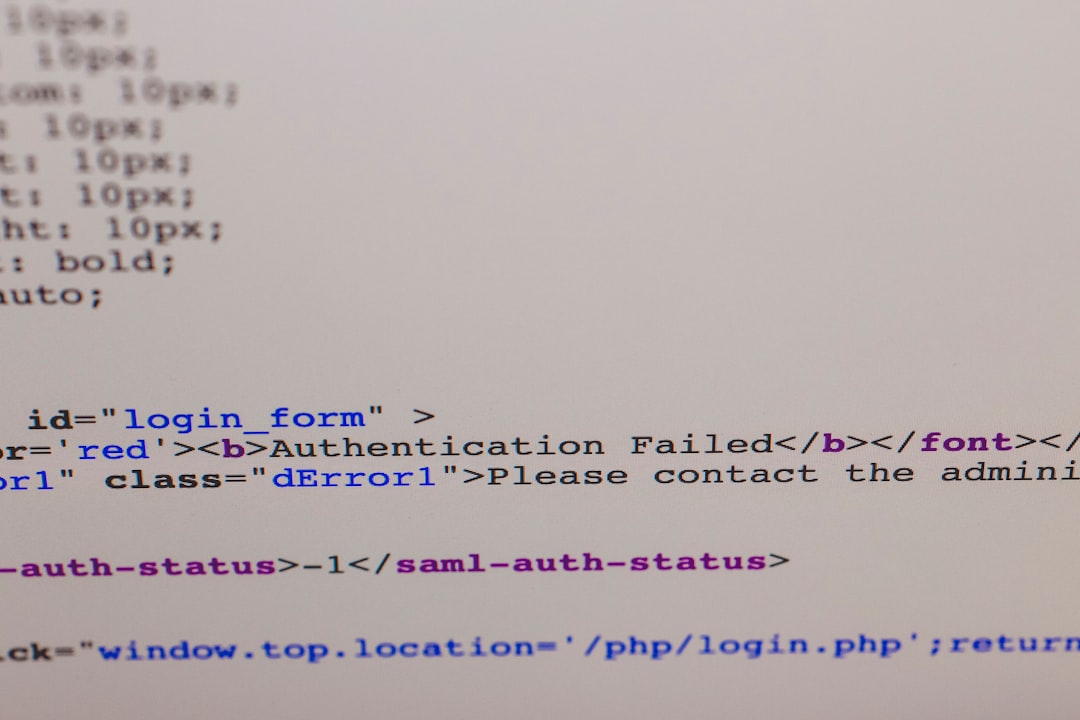
Watch for:
- Unclosed variable brackets
- Incorrect dynamic field mappings
- Duplicate element IDs
- Missing required placeholders
Fix Strategy:
- Open the contract template editor.
- Run built-in validation (if available).
- Preview the contract before publishing.
- Revert to a previous working template version.
If preview mode works but live mode doesn’t, the issue may stem from publishing settings rather than template formatting.
6. Check Server and Database Health
Contracts may stop functioning due to backend instability. If your server is overloaded or your database connection fails, contracts will not load properly.
Server Health Checklist:
- Monitor CPU usage
- Check memory limits
- Verify database connectivity
- Review server logs for crash reports
High traffic spikes or insufficient hosting resources can cause intermittent contract failures. Upgrading hosting plans or optimizing queries may solve the issue.
7. Enable Debug Mode
When basic troubleshooting doesn’t fix the issue, enabling debug mode can reveal hidden errors.
Debug logs typically highlight:
- JavaScript errors
- Undefined variables
- Failed API responses
- Permission mismatches
Best Practice: Always disable debug mode after diagnosing the issue to avoid exposing sensitive information.
8. Reinstall or Reinitialize Peacock UI Components
If contracts remain nonfunctional after basic fixes, a corrupted installation might be the root cause.
Reinstallation Steps:
- Export existing contract data.
- Backup your database.
- Remove Peacock UI components.
- Reinstall the latest stable version.
- Reimport your data.
This method often resolves obscure, persistent issues that simpler fixes cannot.
Preventing Future Contract Issues
Once your contracts are functioning again, prevention should become your priority.
Smart Preventative Measures:
- Schedule regular updates
- Maintain staging environments for testing
- Implement version control
- Monitor system logs weekly
- Set up automated error alerts
Testing changes in a staging environment before deploying to production dramatically reduces contract breakage risk.
When to Contact Support
Sometimes, the issue may lie deeper within Peacock UI’s core architecture. You should contact support if:
- Contracts fail across all user accounts
- Error logs show unexplained core failures
- Reinstallation does not resolve the issue
- There are known bugs acknowledged in release notes
Providing detailed logs, screenshots, and system information will speed up resolution time significantly.
Final Thoughts
Peacock UI contract failures can seem overwhelming at first — but most issues stem from common, fixable causes like version mismatches, caching errors, permission conflicts, or API breakdowns. The key is approaching the problem systematically rather than randomly changing settings.
Start simple. Clear cache. Check updates. Review permissions. Then escalate to deeper diagnostics like server monitoring or debug logs.
In most cases, you’ll have your contracts back up and running faster than expected — and with a better understanding of your system’s architecture moving forward.
Technology hiccups are inevitable. A structured troubleshooting process makes them manageable.