
AI-assisted programming has moved from novelty to everyday workflow, and GitHub Copilot is one of the most widely used tools leading that change. It acts like a coding partner inside your editor, suggesting lines, functions, tests, documentation, and even explanations while you work. Used well, Copilot can help you move faster, explore unfamiliar APIs, reduce repetitive typing, and think through problems from a fresh angle.
TLDR: GitHub Copilot uses AI to suggest code directly inside your editor based on your comments, current file, project context, and coding patterns. To get the most from it, write clear comments, break tasks into small steps, review every suggestion carefully, and use Copilot Chat to ask questions or refine code. It is best treated as a smart assistant, not an automatic replacement for developer judgment, testing, security review, or architecture decisions.
What GitHub Copilot Actually Does
GitHub Copilot is an AI coding assistant created by GitHub and powered by large language models trained to understand programming patterns. Once installed in a supported editor, such as Visual Studio Code, JetBrains IDEs, Neovim, or Visual Studio, it watches the context of your work and offers suggestions as you type.
Those suggestions can be simple, such as completing a variable name, or surprisingly broad, such as generating an entire function from a descriptive comment. Copilot can also help write unit tests, create regular expressions, explain unfamiliar code, convert code between languages, generate documentation, and suggest fixes for errors.
The key idea is that Copilot responds to context. It looks at the file you are editing, nearby comments, function names, imported libraries, and sometimes other open project files. The clearer your intent, the better the suggestions tend to be.

Getting Started with GitHub Copilot
To use Copilot, you need a GitHub account and an active Copilot subscription or eligible access through a student, teacher, open source maintainer, or organization plan. After that, installation is usually straightforward.
- Install the extension for your preferred editor, such as the GitHub Copilot extension for VS Code.
- Sign in with GitHub when prompted, allowing the extension to connect to your account.
- Open a project in a supported programming language.
- Start typing code, comments, function names, or tests and watch for inline suggestions.
- Accept, reject, or modify suggestions using your editor’s shortcut keys.
In many editors, Copilot suggestions appear as faint gray text. You can accept them with a shortcut, cycle through alternatives, or ignore them by continuing to type. This lightweight interaction is part of what makes Copilot useful: it does not require you to stop coding and switch tools constantly.
Writing Better Prompts in Code Comments
One of the simplest ways to guide Copilot is by writing comments that describe what you want. Think of these comments as mini prompts. Copilot does not need a long essay, but it benefits from specificity.
Instead of writing:
// handle dataWrite something like:
// Filter the list of users to include only active accounts,
// sort them by most recent login, and return the first 10 results.
The second version gives Copilot a target. It defines the input behavior, filtering rule, sorting rule, and output size. That kind of clarity often produces better code than vague instructions.
Good Copilot prompts usually include:
- The goal: What should the code accomplish?
- The input: What data or parameters will it receive?
- The output: What should be returned or changed?
- Constraints: Should it be fast, readable, compatible, secure, or use a specific library?
- Edge cases: What should happen with empty values, invalid input, or errors?
You can also guide Copilot by writing descriptive function names. A function called calculateMonthlySubscriptionRevenue gives the AI much more context than a function called calc.
Using Copilot Chat as a Programming Partner
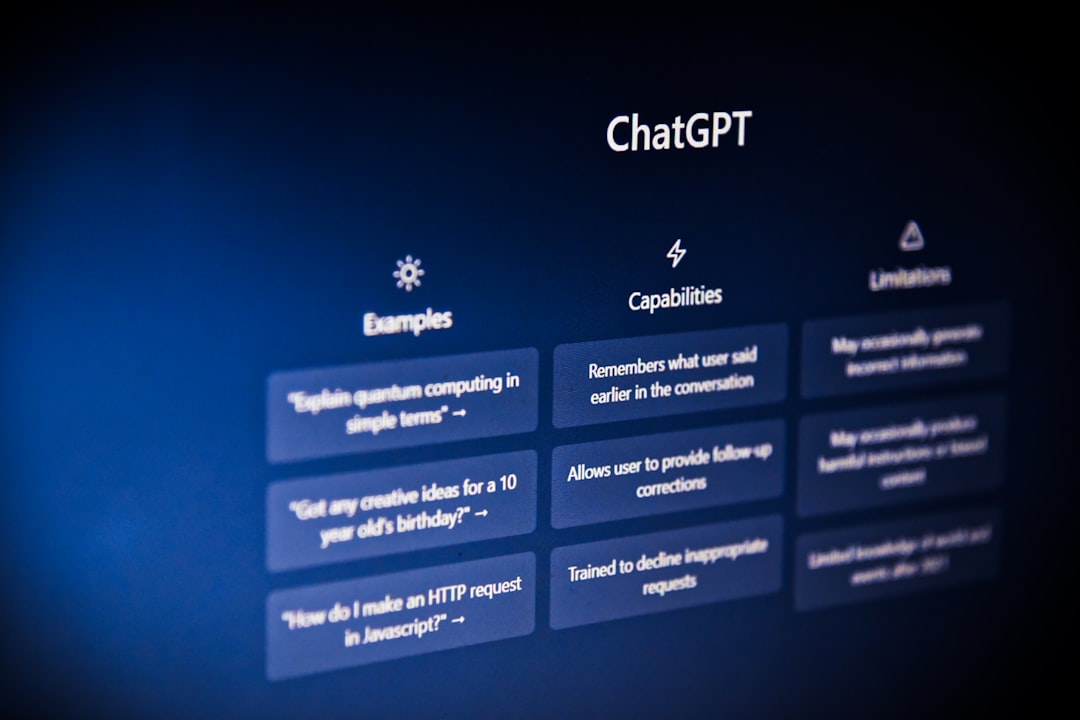
GitHub Copilot is not limited to inline autocomplete. In many environments, Copilot Chat lets you ask questions conversationally. This is especially useful when you want more than a single code suggestion.
You might ask Copilot Chat to:
- Explain a file or function in plain language.
- Find possible bugs in a block of code.
- Generate unit tests for a selected function.
- Suggest a refactor to make code easier to maintain.
- Translate code from one language or framework to another.
- Help debug an error message or failing test.
For example, after selecting a complex function, you could ask: “Explain what this function does and identify any edge cases it might not handle.” Or you might say: “Refactor this to reduce duplication while keeping the behavior the same.”
The best way to use Chat is not to ask it to “build the whole app.” Instead, treat it like a knowledgeable teammate. Ask focused questions, evaluate the answer, then continue iterating.
Practical Ways to Use Copilot Every Day
Copilot can be useful across many parts of the development process. Its strongest advantage is often not writing huge features from scratch, but reducing friction in dozens of small moments.
1. Boilerplate and Repetitive Code
Many projects require predictable patterns: route handlers, form validation, API clients, database models, configuration files, or component scaffolding. Copilot can often generate these quickly once it sees the project’s style.
If you are creating several similar API endpoints, write the first one carefully. Then begin the second, and Copilot may infer the pattern. This can save time while keeping consistency across the codebase.
2. Unit Tests
Testing is one of Copilot’s most valuable use cases. If you have a completed function, you can ask Copilot to generate tests for normal cases, edge cases, and error conditions. You should still review the tests carefully, because an AI-generated test can accidentally repeat the same incorrect assumptions as the implementation.
A strong workflow is to write the function, ask Copilot for tests, then manually add cases the AI missed. This often leads to broader test coverage and less resistance to writing tests in the first place.
3. Learning Unfamiliar APIs
When using a library you do not know well, Copilot can suggest common usage patterns. For instance, if you import a date library, HTTP client, or testing framework, Copilot may generate examples that follow typical conventions.
However, always verify library usage against official documentation. Copilot can sometimes suggest outdated methods or functions that look plausible but do not exist in your installed version.
4. Documentation and Comments
Copilot can help write docstrings, README sections, usage examples, and inline comments. This is helpful when you understand the code but need to explain it clearly to other developers.
For best results, ask it to document the why, not just the what. Code often reveals what it does, but documentation should explain decisions, tradeoffs, and assumptions.
How to Review Copilot’s Suggestions
The most important habit when using Copilot is simple: never accept code blindly. Copilot predicts likely code; it does not guarantee correct, secure, efficient, or maintainable code.
Before keeping a suggestion, ask yourself:
- Does it actually solve the problem? Read the logic line by line.
- Does it match the project style? Check naming, formatting, structure, and conventions.
- Does it handle edge cases? Look for null values, empty arrays, invalid input, timeouts, and failures.
- Is it secure? Watch for unsafe string handling, injection risks, exposed secrets, weak cryptography, or missing validation.
- Is it efficient enough? Consider performance, memory use, database queries, and loops.
- Can it be tested? If it is hard to test, it may need refactoring.
Think of Copilot as someone who gives you a first draft. Sometimes that draft is excellent. Sometimes it is close but incomplete. Sometimes it is confidently wrong. Your role is to be the engineer who evaluates, improves, and owns the final result.
Security, Privacy, and Responsible Use
AI coding tools raise important questions about privacy and security. Before using Copilot at work, check your organization’s policies. Companies may have rules about what code can be shared with cloud-based services, how suggestions are managed, and whether certain features should be enabled or disabled.
You should also avoid placing secrets in your code or prompts. Never type API keys, passwords, tokens, private certificates, or sensitive customer data into comments or chat requests. Even outside Copilot, secrets should be stored in environment variables, secret managers, or secure configuration systems.
From a security perspective, Copilot can generate vulnerable code if the prompt is vague or if common insecure patterns exist in the surrounding context. For example, it might suggest unsafe SQL construction, weak input validation, or permissive access controls. Use static analysis tools, dependency scanners, code review, and automated tests alongside Copilot.

Tips for Getting Better Results
Copilot improves when your project gives it better context. Small changes in how you work can make its suggestions more accurate and useful.
- Keep files focused: Smaller, well-organized files provide clearer context than huge files with unrelated logic.
- Use meaningful names: Descriptive variables, functions, and classes help Copilot infer intent.
- Write a short plan first: A few comments outlining steps can guide the generated code.
- Work incrementally: Generate one function, test it, then continue.
- Provide examples: If you want a specific input and output format, include a sample.
- Reject bad suggestions quickly: Do not fight with a poor completion. Rewrite the prompt or start smaller.
- Use tests as guardrails: Tests help confirm whether AI-generated changes behave correctly.
For example, if you want Copilot to build a CSV parser, do not simply write // parse CSV. Instead, specify delimiter behavior, headers, quoted fields, empty lines, and error handling. The more precise the request, the more useful the result.
Where Copilot Fits in the Developer Workflow
Copilot works best as part of a balanced development process. It can speed up implementation, but it does not replace planning, architecture, debugging skill, product thinking, or collaboration. Senior developers can use it to accelerate routine tasks. Junior developers can use it to explore patterns and learn, as long as they take time to understand the output rather than merely accepting it.
A practical workflow might look like this:
- Define the problem in your own words.
- Break the task into small units, such as functions or components.
- Write comments or function signatures that describe each unit clearly.
- Let Copilot suggest an implementation.
- Review and edit the code for correctness, style, security, and clarity.
- Write or generate tests, then run them.
- Refactor if needed before committing.
This approach keeps you in control while still benefiting from AI speed. It also prevents the common mistake of generating too much code at once and then struggling to understand it.
Common Mistakes to Avoid
New Copilot users often make a few predictable mistakes. The first is accepting suggestions too quickly. The second is giving vague prompts and expecting perfect results. The third is using Copilot to generate large chunks of architecture without first deciding how the system should work.
Another mistake is assuming Copilot understands your business logic. It may understand code patterns, but it does not automatically know your product requirements, compliance obligations, customer expectations, or internal conventions. Those details must come from you, your team, and your documentation.
Finally, avoid becoming dependent on Copilot for understanding. If it writes something you could not explain in a code review, slow down. Ask Copilot Chat to explain it, read documentation, simplify the code, and make sure you truly understand what will run in production.
Conclusion
GitHub Copilot can be a powerful addition to modern software development. It helps reduce repetitive work, generate ideas, create tests, explain code, and accelerate everyday programming tasks. But its real value comes when developers use it thoughtfully: with clear prompts, careful review, strong testing, and sound engineering judgment.
The best mindset is to treat Copilot as an AI pair programmer. It can suggest, draft, explain, and accelerate, but you remain responsible for the final code. When used with discipline and curiosity, Copilot does more than help you type faster; it can help you think differently, learn continuously, and build better software with less friction.