
Running a Trouble in Terrorist Town (TTT) server in Garry’s Mod can be a rewarding experience, but it also comes with technical challenges. Errors ranging from missing textures to Lua script crashes can disrupt gameplay, frustrate players, and damage your server’s reputation. Proper troubleshooting requires methodical analysis, correct configuration, and an understanding of how GMod and Source engine servers operate. This guide provides reliable, structured steps to diagnose and fix the most common GMod TTT server errors.
TLDR: Most GMod TTT server errors are caused by missing content, outdated addons, incorrect server configurations, or Lua conflicts. Start by checking your server console logs for specific error messages, then validate your server files and addons. Ensure all required Workshop content is properly mounted and your server.cfg is correctly configured. Systematically disabling addons often helps identify the root cause quickly.
Understanding Common GMod TTT Server Errors
Before applying fixes, it’s important to recognize the type of error you are facing. Most TTT server problems fall into one of the following categories:
- Missing textures or models (purple/black checkerboards)
- Lua script errors in console
- Server crashes or timeouts
- Workshop content not downloading
- TTT gamemode not loading properly
You can identify the problem by reviewing the server console or log files located in the garrysmod/logs directory. Pay attention to recurring warnings or error lines referencing specific files or addons.
Image not found in postmetaStep 1: Check the Server Console and Logs
The console is your most powerful diagnostic tool. Launch your server with console visibility enabled and monitor it during startup.
Look for errors such as:
- “Couldn’t mount workshop addon”
- “Lua Error: attempt to index global”
- “Missing map maps/ttt_…”
If your server crashes immediately after startup, scroll back to the last recorded error. In many cases, the final message before shutdown identifies the problematic addon or corrupted file.
Tip: Do not ignore warnings. A flood of small Lua errors can eventually destabilize your server.
Step 2: Verify Server Files
Corrupted or incomplete server files are a frequent cause of TTT errors, especially after updates. To ensure file integrity:
- Stop the server completely.
- Use SteamCMD to validate the installation.
- Run the command: app_update 4020 validate
This process scans and replaces missing or damaged Garry’s Mod server files.
If using a hosting provider: Look for a “Verify Game Files” feature in your control panel.
Step 3: Confirm TTT Gamemode Installation
Your server must correctly load the TTT gamemode. Check your server.cfg and launch parameters.
Ensure you have:
- gamemode terrortown set properly
- A valid TTT map such as ttt_minecraft_b5
- No conflicting gamemode declarations
If TTT does not initialize correctly, reinstall the gamemode files or verify that custom TTT forks are up to date.
Step 4: Resolve Missing Textures and Content Errors
Purple and black textures indicate that required content is not mounted. TTT servers heavily depend on Counter-Strike: Source assets.
To fix this:
- Install Counter-Strike: Source on the same server.
- Mount CSS content inside mount.cfg.
- Restart the server.
Additionally, ensure all Workshop collections used by your server are listed in:
- +host_workshop_collection
- +workshop_start_map
If players report missing models but you do not see errors server-side, it usually means clients have not downloaded all Workshop dependencies.
Image not found in postmetaStep 5: Identify Addon Conflicts
Addon conflicts are one of the most common causes of Lua errors and gameplay instability in TTT.
Systematic troubleshooting method:
- Disable all non-essential addons.
- Restart the server.
- Re-enable addons in small groups.
- Test thoroughly after each addition.
This process helps pinpoint which addon introduces conflicts.
Pay special attention to:
- Weapon packs
- Custom roles (e.g., jester, glitch)
- Old admin mods
- HUD modifications
Outdated TTT role expansions frequently break after game updates. Always verify compatibility with your current GMod version.
Step 6: Fix Lua Script Errors
Lua is the scripting backbone of GMod. A small syntax issue can cascade into multiple problems.
Common Lua issues include:
- Nil value references
- Deprecated functions
- Conflicting hooks
- Duplicate network strings
If the console displays repeated Lua errors coming from a specific addon folder, navigate to:
garrysmod/addons/addonname/lua/
You may need to:
- Update the addon
- Replace corrupted files
- Contact the developer
- Remove unsupported modifications
Never edit core Lua files without backups. Improper manual changes can break the entire gamemode.
Step 7: Optimize Server Configuration
Improper configuration settings may produce timeout errors or lag spikes that players interpret as “server errors.”
Review your server.cfg for appropriate settings:
- sv_maxrate 0
- sv_minrate 80000
- tickrate compatibility with host
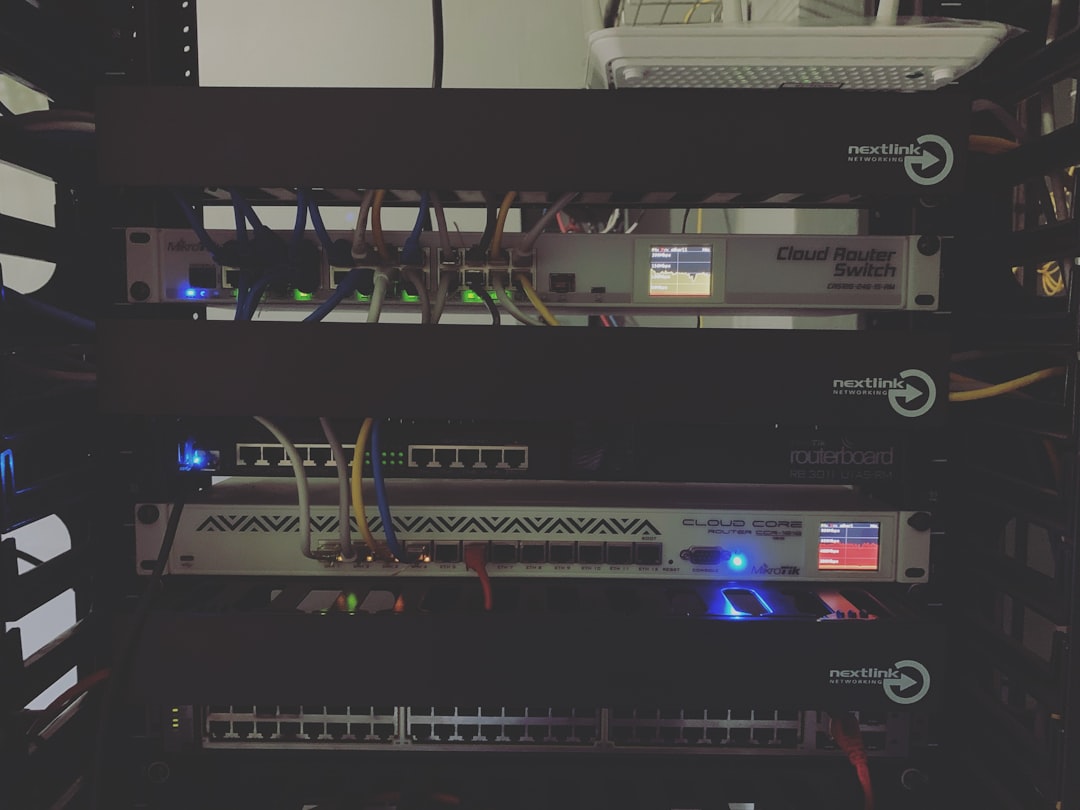
Additionally, ensure your server hardware meets requirements:
- At least 8GB RAM recommended for populated TTT servers
- Modern multi-core CPU
- Stable network connection
If you see frequent “server not responding” reports, monitor CPU and RAM usage in real time.
Step 8: Update Everything Regularly
GMod receives updates that can break older addons. Best practice includes:
- Weekly SteamCMD update checks
- Reviewing Workshop addon changelogs
- Removing abandoned addons
Consider testing updates on a staging server before applying changes to your live environment.
Step 9: Fix Map-Specific Errors
Some errors occur only on specific maps. If your server runs correctly on one map but crashes on another:
- Verify the map file integrity
- Redownload from Workshop
- Remove conflicting map scripts
Custom TTT maps often include embedded scripts that may conflict with newer versions of TTT.
Step 10: Database and Admin Mod Conflicts
Many servers run ULX, CAMI, or other administrative frameworks. Improper configuration can result in permission errors or broken commands.
Ensure:
- Your admin mod is compatible with TTT
- You are not running multiple admin mods simultaneously
- Your SQLite or MySQL database is connected properly
If player data fails to save, verify database credentials and file permissions.
Preventative Maintenance Best Practices
Preventing errors is more efficient than resolving them after they occur. Maintain strong operational discipline:
- Create frequent backups
- Document all addon changes
- Maintain a clean addon directory
- Remove unused Workshop content
- Audit Lua errors weekly
A well-maintained server rarely experiences catastrophic failures.
When to Seek Professional Support
If you have methodically tried every solution and errors persist, consider:
- Consulting experienced TTT developers
- Posting detailed logs in GMod community forums
- Hiring a professional server technician
Always provide full error logs when asking for help. Vague descriptions like “server broken” delay resolution.
Final Thoughts
Fixing a GMod TTT server error requires patience, structured troubleshooting, and attention to detail. Most issues arise from addon conflicts, missing content, or outdated files rather than deep engine-level failures. By checking console logs, validating files, isolating addons, and maintaining proper configuration, you can resolve the overwhelming majority of problems effectively.
A stable TTT server is built on consistency and discipline. Regular updates, systematic monitoring, and conservative addon management will protect both your server performance and your community’s trust. Treat every error as a data point—not a disaster—and you will maintain a reliable and professional gaming environment.