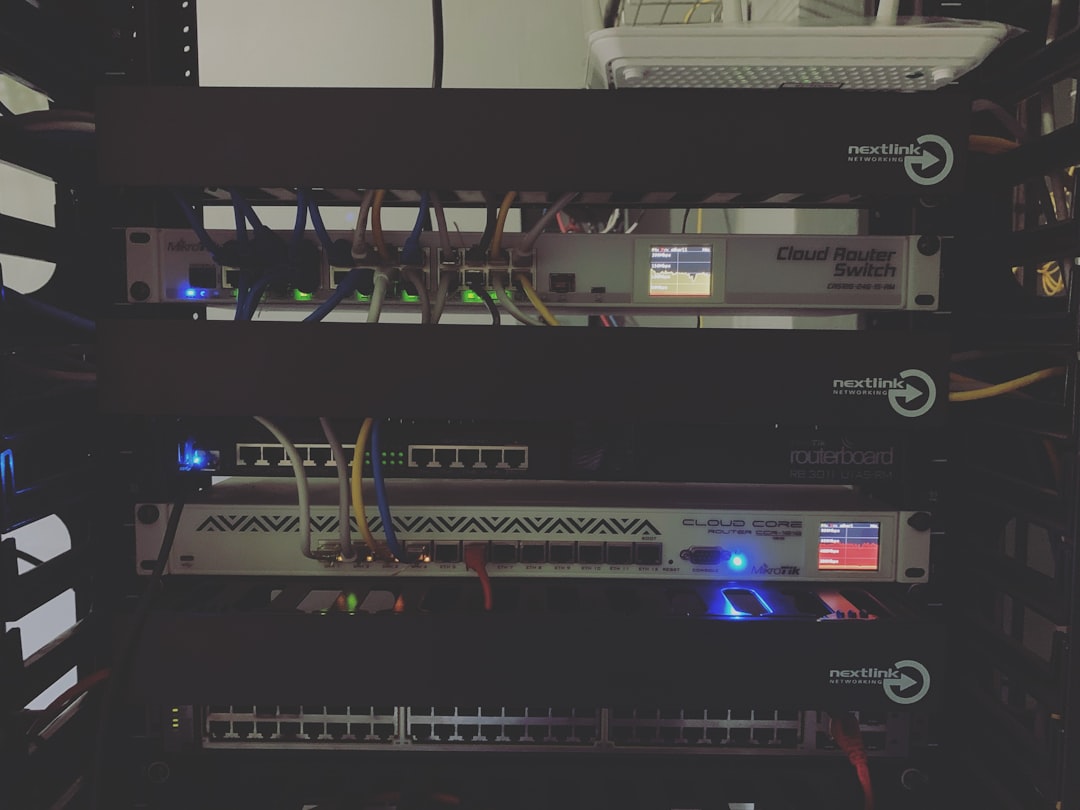
The SiriusXM SXBR3 is a popular streaming radio device used in many businesses and professional environments for its high-quality music and talk radio broadcasts. However, like any other network-dependent device, it can occasionally encounter connectivity problems—especially when connected to a company network. This guide walks you through all the steps you need to take to diagnose and resolve issues with the SXBR3 not working on your company’s network, helping you recover full access to broadcast services efficiently and reliably.
TL;DR
If your SiriusXM SXBR3 isn’t working on a company network, the most likely causes are firewall restrictions, DNS conflicts, or port blockages. Start by checking internet connectivity and ensuring that required ports (8020, 443, and 80) are open. Configure DNS servers manually if needed, and consider placing the device on a separate VLAN or guest network. Always coordinate with your IT department before making significant changes.
1. Verify Internet Connectivity
Before diving into complex configurations, confirm that the SiriusXM SXBR3 has proper internet access:
- Check Ethernet or Wi-Fi Connection: If connected via Ethernet, ensure the cable is securely inserted. For Wi-Fi, confirm the device is connected to the correct SSID with a signal strength of at least 50%.
- Network Status Test: Most SXBR3 devices have a built-in network diagnostics tool accessible from the settings menu. Run this to get a quick view of connectivity status.
- Try Another Network: Temporarily connect the device to a mobile hotspot or personal home Wi-Fi. If it works, the issue lies within the company’s network policies, not the device itself.
2. Understand the Company’s Network Restrictions
Corporate networks often have tighter security policies that can interfere with streaming devices. The firewall, proxy settings, and port restrictions could all be contributors to your SXBR3 not working as expected.
Common Network Restrictions:
- Firewall Blocking Streaming Ports: The SXBR3 needs access to several internet ports that may be restricted on a business-grade firewall.
- DNS Conflicts or Slow Resolution: Corporate DNS may be filtering or failing to resolve SiriusXM domains properly.
- Proxy Authentication: Some networks require HTTP proxy authentication, which SiriusXM devices typically do not support.
3. Required Ports for SiriusXM SXBR3
Ensuring that these ports are open is crucial for the SiriusXM SXBR3 to communicate with the SiriusXM servers:
- TCP/UDP Port 8020 – Essential for SiriusXM content streaming.
- TCP Port 443 – Standard HTTPS communication.
- TCP Port 80 – For HTTP traffic and fallback connections.
Ask your company’s IT department to verify that these ports are not blocked by the firewall or router.
4. Configure Static IP and Manual DNS
DHCP (Dynamic Host Configuration Protocol) might assign DNS servers that fail to resolve SiriusXM’s hostnames. You can try configuring a static IP address and using public DNS servers:
- Go to the SXBR3’s network settings menu.
- Select Advanced Configuration or Manual Network Setup.
- Assign a static IP outside of your DHCP range (e.g., 192.168.1.200).
- Use known reliable DNS servers like:
- Google: 8.8.8.8 and 8.8.4.4
- Cloudflare: 1.1.1.1 and 1.0.0.1
This bypasses potential DNS restrictions and can greatly improve device behavior under tight network policies.
5. Create a Guest Network or VLAN
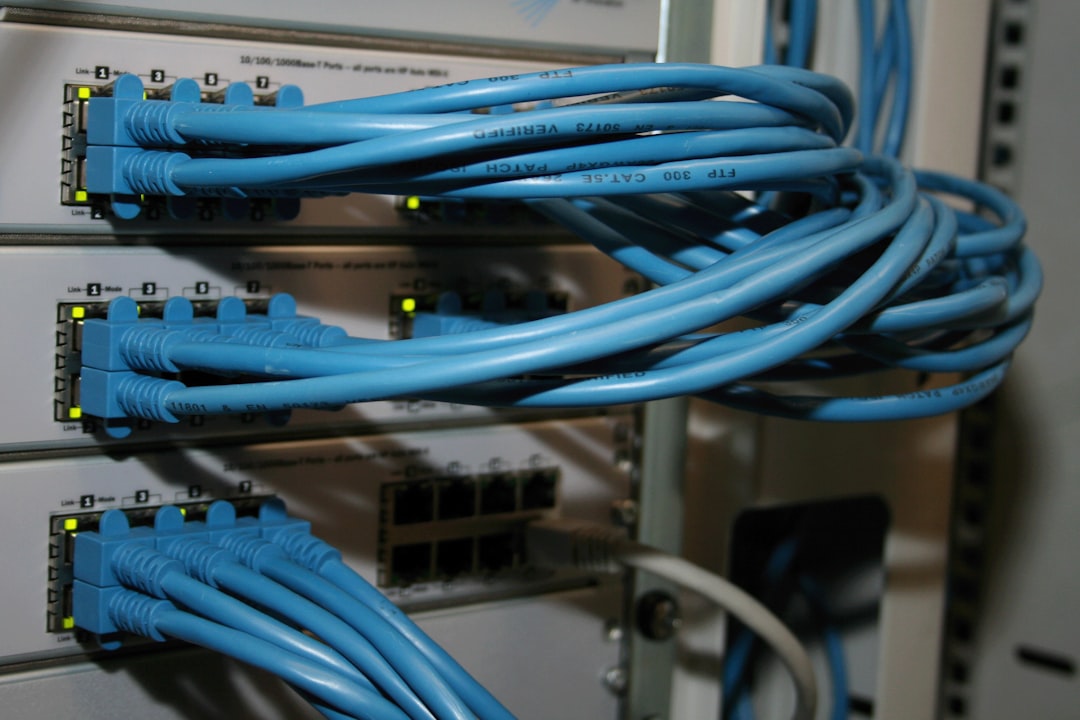
If you have tight firewall rules or authentication-based access controls on your primary network, consider setting up a VLAN or isolated VLAN specifically for media devices. Below are reasons and methods for this workaround:
- Isolate Device Traffic: Keeps streaming devices from interfering with the main business flow and bypasses internal firewall rules.
- Use Simpler Authentication: Guest networks typically avoid 802.1x or MAC-based filtering, which the SXBR3 doesn’t support.
- Easier Troubleshooting: A simplified network means fewer protocols and policies that could interfere.
Ask your IT administrator to place the SXBR3 on an open or semi-open VLAN with the necessary internet access. Make sure the VLAN has unrestricted outgoing traffic on the required ports mentioned earlier.
6. Disable Captive Portals and MAC Filtering
Many company Wi-Fi networks have captive portals (the web pages that appear before internet access is granted) or MAC filtering rules that prevent unauthorized devices from gaining access.
The SXBR3 cannot process a portal login or provide a browser interface to navigate those screens. Ensure the MAC address of the SXBR3 is added to the allowlist or bypass authentication altogether for its network segment.
You can usually find the MAC address on the device sticker or within the network settings menu of the SXBR3.

7. Firmware Update and Factory Reset
If all else fails, consider updating the firmware of the SXBR3 to the latest version. Corrupt firmware or outdated software can occasionally cause networking issues.
- Connect the device to a basic network (mobile hotspot or home network).
- Go to the firmware update section under System Settings.
- Install available updates and reboot the device.
Perform a factory reset only as a last resort if you suspect a configuration issue you can’t undo. Make sure to note down any current settings prior to resetting.
8. Contact SiriusXM or Network Support
If you’re still stuck after following all the above steps, it’s time to contact the experts.
- SiriusXM Tech Support: Provide them with details on your symptoms, network configuration, and any error messages.
- Your Company’s IT Department: Give them a summary of troubleshooting steps already taken and request assistance with network logs or packet tracing if necessary.
9. Additional Tips
Here are a few final tips that can improve success with the SiriusXM SXBR3 on company networks:
- Prefer wired Ethernet over Wi-Fi wherever possible for a stable connection.
- Update router firmware and configuration settings, especially if other IoT devices fail to connect.
- Avoid VPNs or custom DNS gateways that may interfere with direct server connections.
Conclusion
While corporate networks are often fortified for security and performance, they can inadvertently restrict devices like the SiriusXM SXBR3. By methodically checking for internet access, port availability, DNS functionality, and network rules, you can usually isolate and repair the source of the issue. Collaborate closely with your IT department and SiriusXM support to ensure that your radio device functions reliably and remains compliant with your organization’s infrastructure.
Taking small but strategic steps—such as assigning a static IP, placing the device on a guest VLAN, or manually configuring DNS—can make a significant difference. With the right attention to network configurations, your SiriusXM SXBR3 can provide dependable entertainment within company walls.