You’re settled in, snacks in hand, ready to binge your favorite show on Hulu. But just as the episode loads… BAM! An annoying error message pops up: Error Code P-TS207. What does it mean? Why is it here? More importantly, how do you get rid of it?
TL;DR
The Hulu Error P-TS207 usually shows up because of a network issue, outdated app, or a problem with Hulu’s servers. It’s commonly linked to playback troubles like buffering or freezing. You can typically fix it by restarting your device, updating the app, checking your internet, or reinstalling Hulu. Don’t panic—this is a common error and can often be fixed in minutes.
What Is Hulu Error P-TS207?
This error is Hulu’s way of saying, “Hey, something’s not working right with your stream.” Specifically, it’s a playback error. It usually means Hulu can’t play your video properly. The video may pause, buffer endlessly, or just not play at all.
It usually pops up on:
- Smart TVs
- Streaming devices like Roku, Fire Stick, or Apple TV
- Game consoles
- Even on mobile devices and web browsers sometimes!
So yes, pretty much everywhere Hulu runs. But don’t worry. We’ll help you get back to your show quickly.
Why Does This Error Happen?
There are a few common reasons why Hulu gives you the P-TS207 headache.
- Your internet connection is slow or unstable.
- The Hulu app is outdated or corrupted.
- Hulu servers are overloaded or temporarily down.
- Your streaming device needs a restart, update, or reset.
Let’s unpack each of these a bit and show you what to do.
1. Check Your Internet Connection
Most Hulu playback problems come from shaky internet. Hulu needs a steady stream of data to play your content. If your signal dips, the app might throw this error at you.
Try these steps:
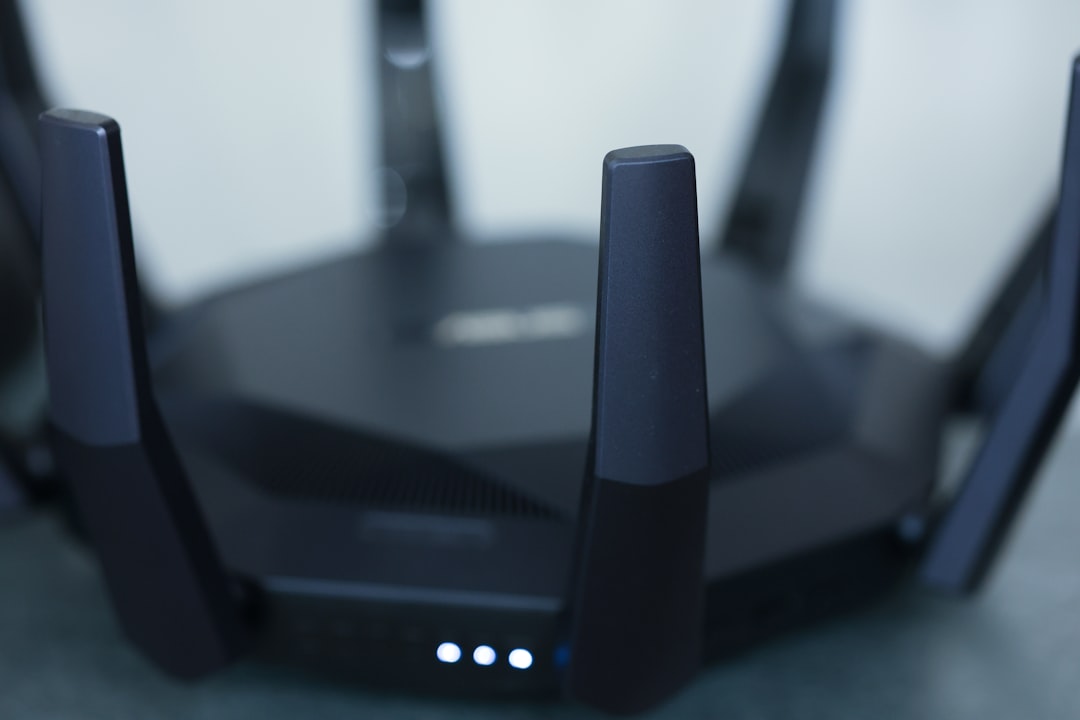
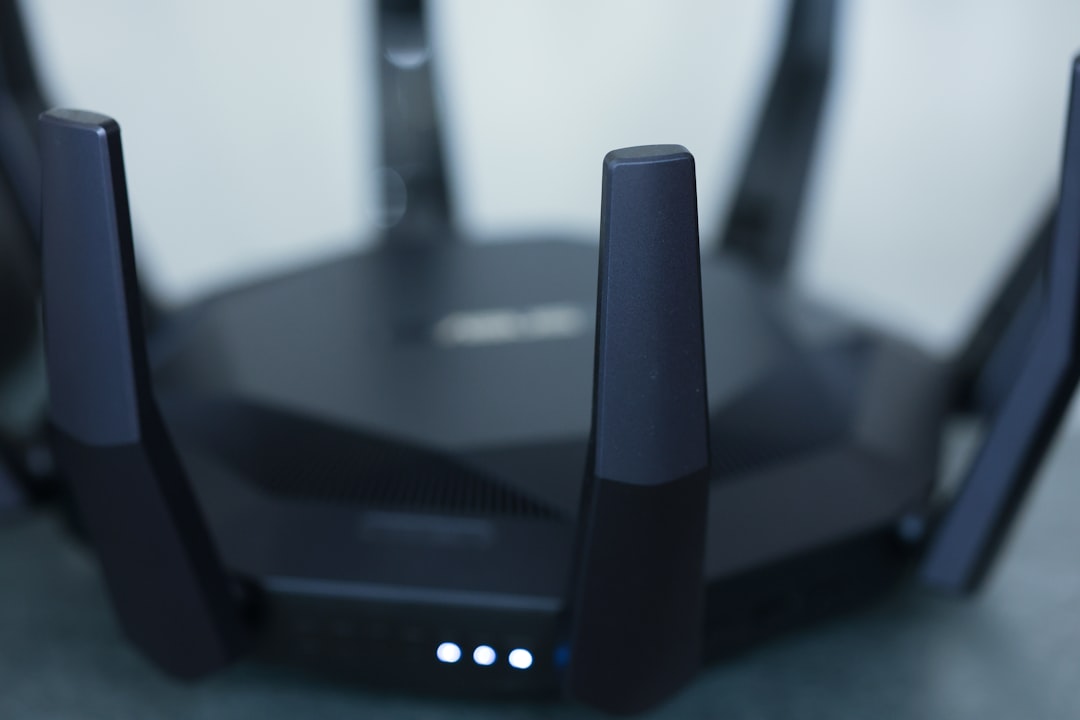
- Restart your modem and router. Unplug them, wait 30 seconds, plug them back in.
- Test your internet speed. Hulu recommends at least 3 Mbps for standard streaming. HD needs 8 Mbps or more.
- Use a wired connection. If you’re using Wi-Fi, try plugging in an Ethernet cable if your device allows it.
- Move closer to the Wi-Fi router. Walls and furniture can weaken the signal.
2. Restart Your Streaming Device
Believe it or not, restarting your device can solve a ton of problems. It clears out glitches and gives everything a fresh start.
Just turn it off, wait a few seconds, and turn it back on. That works for:
- Smart TVs
- Roku, Fire Stick, and Apple TV
- Gaming consoles
- Phones, tablets, and computers
Still not working? Keep reading.
3. Update the Hulu App
An outdated app might not play nice with Hulu’s servers. Make sure you’re running the latest version of Hulu.
Steps will vary depending on your device, but usually it’s something like:
- Go to your device’s app store.
- Search for Hulu.
- If an Update button is available, click it!
While you’re at it, check for system updates too. Your device’s OS might also need some love.
4. Clear Cache and Data
Sometimes your device stores temporary files that get buggy over time. Clearing cache can help the app run smoother.
Here’s how on most devices:
- Go to Settings on your device.
- Find Apps or Applications.
- Select Hulu.
- Tap Clear Cache and Clear Data.
Be aware: clearing data might log you out. But it’s worth it if it gets Hulu working again.
5. Reinstall the Hulu App
If clearing the cache doesn’t help, it might be time for the big guns—reinstalling the app.
Here’s what to do:
- Delete or uninstall the Hulu app.
- Restart your device after uninstalling (just to be extra safe).
- Go back to the app store and reinstall Hulu.
- Log back in and try streaming again.
This nukes any corrupt files and gives you a clean, fresh version of the app. Like giving Hulu a digital spa day!
6. Check for Hulu Outage
Sometimes, it’s not you. It’s Hulu.
If their servers are down or facing hiccups, you might see the P-TS207 message.
How to check:
- Visit sites like Downdetector
- Check Hulu’s official Twitter @hulu_support
If others are complaining about the same issue, sit tight. The Hulu team will likely fix it soon.
7. Try a Different Device
If you have another device that runs Hulu, give it a whirl. Try on your phone, laptop, or another smart TV.
If it works there, the issue is likely with your original device—not your account or the app itself. This is a good way to zoom in on the real problem.
8. Contact Hulu Support
Still seeing that annoying error after all this? Time to bring in the big leagues.
Contact Hulu support for help. They’ll walk you through more detailed steps or help figure out if there’s an issue with your account.
- Visit: Hulu Support Page
- Or tweet them: @hulu_support
Let’s Wrap It Up
Hulu Error P-TS207 might seem like an episode-ending monster, but it’s not.
Here’s a recap of what to try:
- Check your internet
- Restart your device
- Update or reinstall the Hulu app
- Clear cache and data
- Look for Hulu outages
- Try another device
- Contact support if all else fails
The good news? Most of these fixes only take a few minutes. So don’t let Error P-TS207 kill your streaming buzz. Handle it, then dive back into your show!
Now go grab another snack, hit play, and enjoy. You’ve earned it.