Video splitting is one of the most important editing tasks for creators, marketers, educators, and professional editors. A good video splitter app should make it easy to cut long footage into smaller clips, remove unwanted sections, rearrange scenes, and export polished videos without slowing down the workflow. While Filmora is popular because of its friendly interface and broad feature set, several other apps offer similar or even more advanced tools for beginners and pros.
TLDR: The best video splitter apps similar to Filmora include CapCut, Movavi Video Editor, Adobe Premiere Pro, DaVinci Resolve, and Clipchamp. Beginners may prefer CapCut, Movavi, or Clipchamp because they are simple and fast, while professionals often benefit from Premiere Pro or DaVinci Resolve. Each app supports precise cutting, trimming, transitions, effects, and export options for social media, business, and professional video projects.
What Makes A Good Filmora Alternative?
A strong Filmora alternative should offer more than a basic cut button. It should provide a smooth timeline, accurate splitting controls, simple trimming, drag and drop editing, transition tools, and reliable exporting. For beginners, the app should feel approachable and not require hours of training. For professionals, it should support advanced color correction, audio editing, motion graphics, proxies, and high resolution exports.
The ideal video splitter also depends on the type of content being produced. A social media creator may need fast vertical video templates, captions, and one click resizing. A filmmaker may need advanced color grading, multicam editing, and professional codec support. A business user may want a clean interface, stock media, and quick export presets.
1. CapCut
Best for: Social media creators, beginners, mobile editors, and quick content production.
CapCut has become one of the most popular video editing apps for short form content. It is especially useful for creators who need to split clips quickly, remove pauses, add captions, and publish videos to platforms such as TikTok, Instagram, YouTube Shorts, and Reels. Its interface is clean, modern, and easy to understand, making it a strong Filmora alternative for beginners.
The splitting tool in CapCut is simple but effective. Editors can place the playhead at any point in the timeline and split a clip instantly. After that, unwanted sections can be deleted, moved, reversed, sped up, slowed down, or enhanced with effects. This makes CapCut ideal for cutting interviews, vlogs, tutorials, reaction videos, and product clips.
Key features include:
- Easy timeline based video splitting and trimming
- Automatic captions and text templates
- Built in filters, transitions, stickers, and effects
- Background removal and speed controls
- Mobile, desktop, and web versions
Why it is similar to Filmora: CapCut offers a beginner friendly editing experience with plenty of effects, templates, and social media tools. Like Filmora, it helps users create polished videos without requiring professional editing knowledge.
Potential downside: CapCut is excellent for fast content, but professional editors may find it less flexible than advanced tools such as Premiere Pro or DaVinci Resolve.
2. Movavi Video Editor
Best for: Beginners, home users, educators, and small business content creators.
Movavi Video Editor is one of the closest alternatives to Filmora in terms of style, simplicity, and target audience. It focuses on making editing easy without removing essential creative tools. The app is especially suitable for users who want to split videos, add titles, include music, apply transitions, and export a final video without a complicated learning curve.
Movavi’s video splitter is straightforward. Footage can be imported into the timeline, divided into smaller clips, trimmed at the edges, and rearranged as needed. This is useful for travel videos, event highlights, lessons, promotional videos, and family projects. Its drag and drop workflow keeps the editing process simple.
Key features include:
- Simple split, cut, trim, and merge tools
- Transitions, filters, titles, and overlays
- AI background removal and noise removal tools
- Screen recording and webcam capture options
- Export presets for popular platforms and devices
Why it is similar to Filmora: Movavi offers a familiar, beginner oriented layout with creative effects and quick editing tools. It is designed for users who want professional looking results without managing complex menus.
Potential downside: It is not as advanced as professional editing suites. Editors who need deep color grading, heavy compositing, or complex audio mixing may eventually outgrow it.
3. Adobe Premiere Pro
Best for: Professional editors, agencies, filmmakers, YouTubers, and production teams.
Adobe Premiere Pro is a professional grade video editing application used across film, television, marketing, and online content production. It is more advanced than Filmora, but it can still serve as a powerful video splitter for editors who need precision and flexibility. For pros, Premiere Pro offers one of the most complete editing environments available.
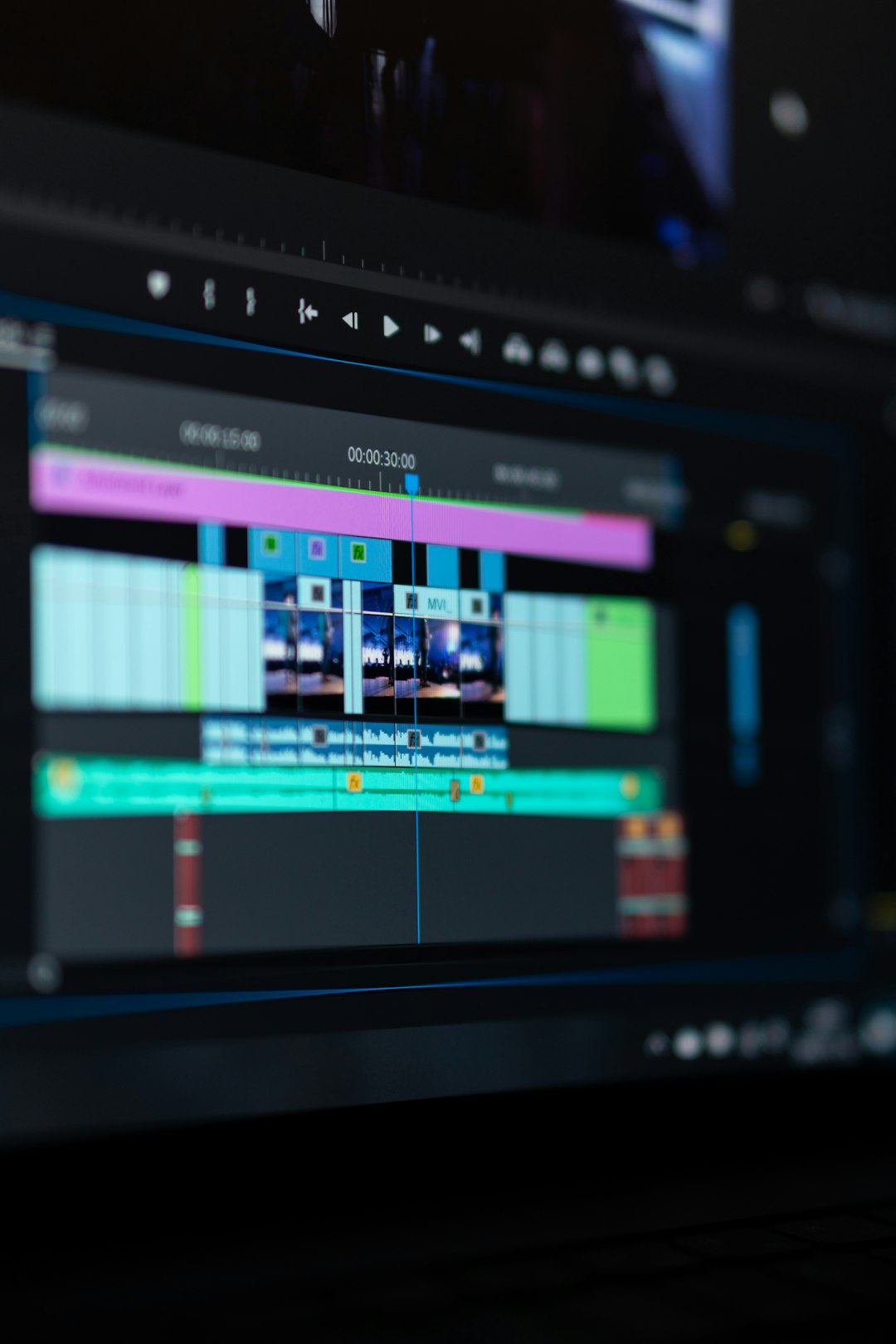
Splitting clips in Premiere Pro is fast and accurate. Editors can use the razor tool, keyboard shortcuts, ripple edits, rolling edits, and trimming panels to control every frame. This makes it ideal for long form videos, documentaries, branded content, music videos, and complex projects with many layers.
Key features include:
- Frame accurate splitting and professional trimming tools
- Multicam editing for interviews, events, and podcasts
- Advanced audio tools and integration with Adobe Audition
- Motion graphics support through After Effects integration
- Professional export controls and format support
Why it is similar to Filmora: Premiere Pro can perform the same core tasks as Filmora, including splitting, transitions, titles, effects, and exporting. However, it expands those tasks into a professional workflow suitable for high end production.
Potential downside: Premiere Pro has a steeper learning curve and uses a subscription model. Beginners may need time to understand its panels, tools, and workflow.
4. DaVinci Resolve
Best for: Professional editors, colorists, filmmakers, advanced creators, and budget conscious pros.
DaVinci Resolve is one of the most impressive video editing apps available because it combines editing, color correction, visual effects, motion graphics, and audio post production in one platform. It is widely respected for its professional color grading tools, but it is also a strong video splitter and general editing app.
Resolve includes multiple workspaces, including the Cut page and the Edit page. The Cut page is designed for fast assembly, quick splitting, and rapid timeline work, while the Edit page offers more traditional professional controls. This makes DaVinci Resolve useful for both experienced editors and ambitious beginners.
Key features include:
- Fast splitting and trimming on the Cut and Edit pages
- Industry leading color correction and grading tools
- Fairlight audio tools for professional sound editing
- Fusion visual effects and motion graphics
- Strong free version with advanced capabilities
Why it is similar to Filmora: DaVinci Resolve handles all standard editing tasks, including cutting clips, adding transitions, placing titles, and exporting finished projects. It is similar in purpose but much deeper in professional capability.
Potential downside: The interface can feel complex at first. Beginners may need tutorials before becoming comfortable with its multi page workflow.
5. Clipchamp
Best for: Casual editors, business users, students, and quick browser based projects.
Clipchamp is a web based video editor that works well for users who want to split and edit videos without installing a heavy desktop program. It is especially convenient for simple marketing videos, school projects, internal business clips, social media posts, and presentations.
The splitting process in Clipchamp is easy. Editors can upload footage, drag it to the timeline, move the playhead, and press the split button. Clips can then be deleted, rearranged, trimmed, or enhanced with text, music, filters, and transitions. Its browser based design makes it accessible to people who only need occasional editing tools.
Key features include:
- Simple browser based video splitting
- Templates for social media and business videos
- Stock video, music, and image assets
- Text to speech and caption style tools
- Easy export options for common video formats
Why it is similar to Filmora: Clipchamp focuses on simplicity, templates, and quick edits. Like Filmora, it helps non experts create clean videos with minimal setup.
Potential downside: It is not ideal for heavy professional editing, large projects, or workflows that require advanced control over color, sound, and visual effects.
Which Video Splitter App Is Best?
The best choice depends on skill level, project type, and editing goals. CapCut is ideal for social media creators who need fast results and trendy effects. Movavi Video Editor is suitable for beginners who want a Filmora like desktop experience. Adobe Premiere Pro is best for professionals who need advanced editing control and collaboration. DaVinci Resolve is excellent for editors who want professional features, especially color grading, without relying on a basic editor. Clipchamp is best for simple browser based projects and fast business content.
For beginners, the most comfortable options are usually CapCut, Movavi, and Clipchamp. These apps reduce technical complexity and allow users to split, trim, and export videos quickly. For pros, Premiere Pro and DaVinci Resolve provide the depth needed for serious production work.
Final Thoughts
A video splitter app should make editing faster, cleaner, and more organized. Filmora remains a popular option, but it is not the only beginner friendly video editor available. CapCut, Movavi Video Editor, Adobe Premiere Pro, DaVinci Resolve, and Clipchamp each offer strong splitting tools and creative features for different types of users.
Beginners should focus on ease of use, templates, and fast exports. Professionals should look for precision trimming, advanced audio tools, color correction, and format flexibility. With the right app, even long and messy footage can be transformed into clear, engaging, and polished video content.
FAQ
1. What is a video splitter app?
A video splitter app is software that allows editors to cut a video into smaller sections. It is commonly used to remove unwanted footage, create short clips, rearrange scenes, or prepare content for social media.
2. Which app is most similar to Filmora?
Movavi Video Editor is one of the most similar options because it offers a beginner friendly interface, simple editing tools, effects, transitions, and quick export settings.
3. What is the best free video splitter app?
DaVinci Resolve has one of the strongest free versions for advanced editing. CapCut is also a great free choice for social media editing and quick video splitting.
4. Is Premiere Pro good for beginners?
Premiere Pro can be used by beginners, but it has a steeper learning curve than CapCut, Movavi, or Clipchamp. It is better suited for users who want to grow into professional editing.
5. Can these apps split videos without losing quality?
Yes, these apps can split and export videos in high quality. Final quality depends on export settings, source footage, resolution, bitrate, and chosen file format.
6. Which video splitter is best for social media?
CapCut is often the best choice for social media because it includes vertical video tools, captions, effects, templates, and fast export options for short form platforms.
7. Which app is best for professional video editing?
Adobe Premiere Pro and DaVinci Resolve are the strongest professional options. Premiere Pro is widely used in production workflows, while DaVinci Resolve is especially respected for color grading and all in one post production.