Changing the language on a Samsung TV may seem like a small adjustment, but for global users, multilingual households, or anyone who accidentally switched settings, it can make a significant difference in usability. Whether the menu is stuck in an unfamiliar language or subtitles and audio don’t match preferences, Samsung TVs provide multiple ways to adjust language settings quickly and efficiently.
TLDR: To change the language on a Samsung TV, go to Settings > General > Language and select your preferred option. You can also change audio and subtitle languages separately under broadcasting or accessibility settings. Even if the menu is in an unfamiliar language, recognizable icons and reset options make it manageable. These six simple settings hacks ensure global users can navigate their Samsung TVs with ease.
Understanding Language Settings on Samsung TVs
Samsung TVs are designed for global audiences, which means they support multiple languages for menus, audio, and subtitles. However, it’s important to understand that there are different types of language settings:
- Menu Language – Changes the TV interface language.
- Audio Language – Controls the spoken language in programs.
- Subtitle Language – Adjusts on-screen text captions.
- Smart Hub Language – Affects apps and smart features.
Knowing which setting to change helps avoid confusion and ensures the right adjustment is made.
Hack #1: Change the Menu Language in System Settings
The most common change users need is adjusting the TV’s main display language. This affects all menus, settings, and navigation screens.
Steps:
- Press the Home button on the remote.
- Go to Settings (gear icon).
- Select General.
- Choose System Manager (on newer models).
- Select Language.
- Pick your preferred language from the list.

On older Samsung models, users may find the language option under Settings > System > Menu Language. Once selected, the TV instantly updates to the new language.
Pro Tip: If the current language is unreadable, look for the gear icon, which universally represents settings.
Hack #2: Adjust Audio Language for Broadcast and Streaming Content
Sometimes the TV menu is correct, but programs play in the wrong language. This is especially common with international broadcasts or streaming platforms.
To change audio language:
- While watching content, press the Settings or Tools button.
- Select Audio or Sound Options.
- Choose Audio Language.
- Select the desired option (if available).
Some apps like Netflix, YouTube, or Amazon Prime have independent audio settings. In that case, users must adjust language inside the app itself instead of the TV’s main menu.
Important Note: Not all broadcasts support multiple languages. If only one option appears, the content provider limits language availability.
Hack #3: Enable or Change Subtitle Language
Subtitles are essential for multilingual households or viewers who prefer watching content in its original language.
To activate or modify subtitles:
- Press Home on the remote.
- Open Settings.
- Select General.
- Go to Accessibility.
- Click Caption Settings.
- Choose Caption Mode and preferred language.
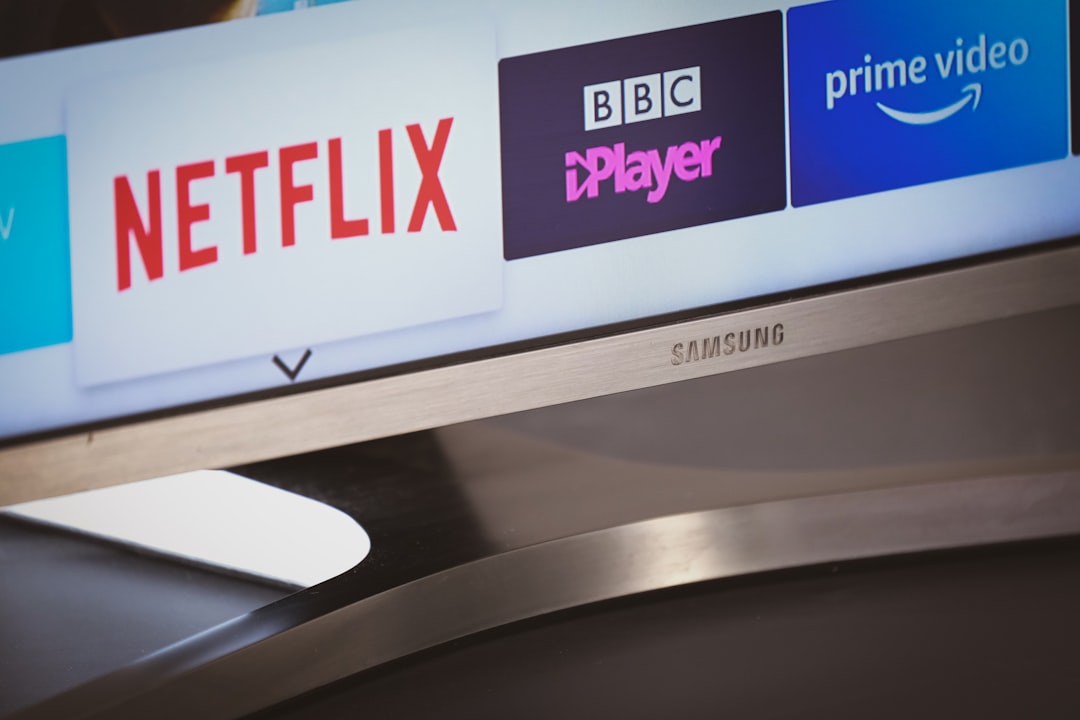
Users can also customize subtitle appearance, including font size, color, and background transparency, making viewing more comfortable.
Accessibility settings are especially helpful for bilingual families or individuals with hearing impairments.
Hack #4: Reset the TV When Language Is Completely Unrecognizable
If a Samsung TV has been switched to a language the user cannot read—such as Korean, Arabic, or another unfamiliar script—a factory reset may be the quickest solution.
Factory Reset Steps:
- Press the Home button.
- Navigate to Settings (gear icon).
- Select General.
- Scroll to Reset.
- Enter the PIN (default is 0000).
The TV will restart and prompt users to select their language during the setup process.
Warning: Resetting deletes saved apps, Wi‑Fi settings, and personalization. This method should be used only if standard language adjustments are impossible.
Hack #5: Change Smart Hub Language Separately
Samsung Smart TVs use Smart Hub as their application interface. In some cases, Smart Hub follows regional settings instead of the TV’s menu language.
If apps appear in the wrong language:
- Go to Settings > Support.
- Select Device Care (if available).
- Check Location or Region Settings.
Changing the region may require agreeing to new terms and conditions. After adjustment, Smart Hub refreshes with apps that match the selected country or language.
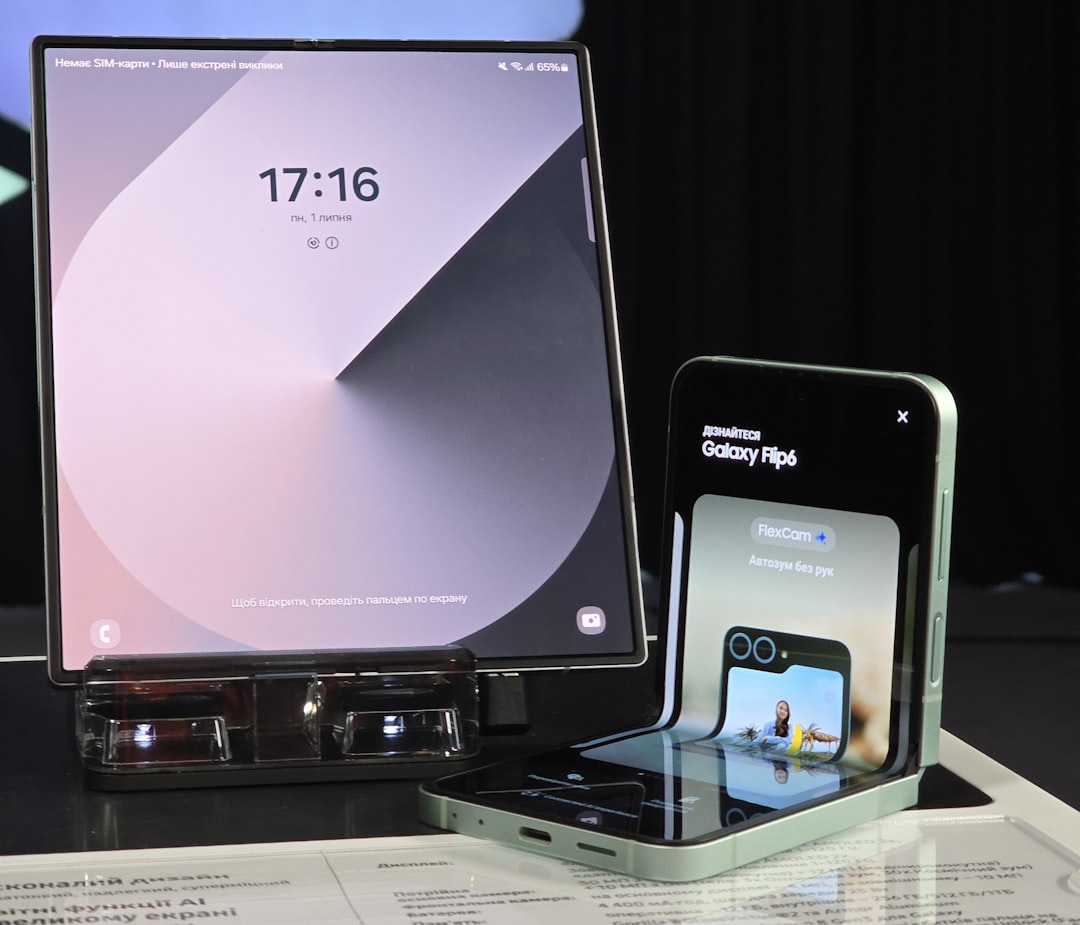
This hack is especially helpful for expats or international users who moved their TV to another country.
Hack #6: Use the Samsung SmartThings App for Remote Language Changes
Many modern Samsung TVs integrate with the SmartThings mobile app. If navigating the TV screen is difficult due to language barriers, users can control settings from their smartphone.
Steps:
- Download the SmartThings app.
- Connect it to the TV via Wi‑Fi.
- Access settings controls through the app interface.
Because smartphones typically operate in the user’s preferred language, adjusting TV settings through the app becomes significantly easier.
This method is particularly useful when the remote control layout differs from familiar international versions.
Additional Tips for Global Users
Samsung designs its TVs for worldwide compatibility, but regional nuances still exist. Here are a few additional pointers:
- Check Model Differences: Tizen-based Smart TVs may have slightly different menu paths than older LCD or Plasma models.
- Update Firmware: Software updates often improve language options and fix glitches.
- Consult the e-Manual: Available directly in the TV settings, the e-manual explains language navigation in visual steps.
- Use Voice Control: If supported, voice assistants can help access settings faster.
Understanding these small variations ensures users can confidently adjust settings no matter where they purchased their device.
Common Language Issues and How to Solve Them
Even after adjusting preferences, some users encounter lingering problems. Here are quick solutions:
- Apps remain in another language: Change language inside the specific app.
- Subtitles not matching audio: Double-check both audio and caption settings separately.
- Language keeps reverting: Ensure firmware is updated.
- No desired language available: It may not be supported in that region.
These troubleshooting steps help prevent unnecessary frustration.
Why Language Customization Matters
Language settings are more than a cosmetic preference. They directly impact accessibility, family inclusivity, and overall enjoyment. For international students, expatriates, diplomats, and multicultural households, being able to switch languages instantly transforms how entertainment is consumed.
Samsung continues expanding language coverage to meet growing global demand. The ability to customize menus, subtitles, and audio ensures viewers remain comfortable regardless of nationality or location.
Frequently Asked Questions (FAQ)
-
1. Why can’t he or she find the language option on the TV?
The location varies by model. On most recent Samsung TVs, it’s under Settings > General > System Manager > Language. -
2. What is the default PIN for resetting a Samsung TV?
The default PIN is 0000, unless it has been changed manually. -
3. Can the language be changed without a remote?
Yes. Users can utilize physical buttons on the TV (if available) or control it via the SmartThings app. -
4. Why are streaming apps in a different language than the TV menu?
Many apps use profile or regional settings independent from the TV’s system language. -
5. Will changing the language affect installed apps?
Generally, no. However, region changes may reload app availability. -
6. Does a factory reset change the language automatically?
After reset, the TV prompts users to select a preferred language during setup. -
7. Are all languages available on every Samsung TV?
No. Available languages depend on model series and region of purchase.
With these six simple settings hacks and practical troubleshooting tips, global Samsung TV users can confidently navigate language adjustments without stress. Whether relocating abroad, setting up a new device, or simply customizing for personal comfort, mastering these controls makes the viewing experience smooth, clear, and fully personalized.