Interfolio is a widely used academic platform designed to streamline faculty searches, promotion reviews, and scholarly activity tracking. For new users, the login process may seem simple, but small misunderstandings—such as login credentials, institutional access, or sign-on errors—can cause unnecessary confusion. This guide explains exactly how to sign in to Interfolio easily, troubleshoot common login issues, and securely manage your account.
TLDR: Logging into Interfolio requires either an institutional single sign-on (SSO) or direct account credentials created through Interfolio. Users should confirm they’re accessing the correct institutional portal, use updated browsers, and reset passwords when necessary. Most access issues stem from incorrect email addresses or institutional login mismatches. Following step-by-step guidance makes the process quick and stress-free.
Whether someone is a faculty member, administrator, or job applicant, understanding the correct login process ensures smooth access to Interfolio’s powerful tools.
Understanding Interfolio Access
Interfolio operates primarily through institutions such as universities and research organizations. In many cases, users do not create a fully independent account. Instead, they log in through their school’s authentication system.
There are two common login methods:
- Institutional Single Sign-On (SSO) – Most common for faculty and staff.
- Direct Interfolio Login – Often used by external applicants or letter writers.
It is essential for users to determine which option applies to them before attempting to sign in.
Image not found in postmetaStep-by-Step Guide to Signing In
1. Visit the Official Interfolio Website
Users should begin by navigating to the official Interfolio website. Typing the URL directly into the browser or accessing the link through their institution’s website helps avoid phishing pages or incorrect login portals.
2. Click on “Sign In”
On the homepage, the “Sign In” button is usually located in the upper-right corner. Clicking it directs users to the authentication page.
3. Select the Appropriate Login Option
Users will typically see options such as:
- Sign in with Institution
- Sign in with Email
If affiliated with a university: Selecting “Sign in with Institution” and entering the organization’s name connects users to their campus login page.
If an external user: Choosing “Sign in with Email” allows entry of an Interfolio-specific email and password.
4. Enter Credentials
For institutional login, users must provide their campus username and password. For direct login, they must enter the email address associated with their Interfolio account and the correct password.
5. Complete Multi-Factor Authentication (If Required)
Many institutions use multi-factor authentication (MFA), such as mobile app verification or SMS codes. Completing this step grants secure access to the dashboard.
6. Access the Dashboard
Once authenticated, users are redirected to their Interfolio dashboard, where they can access:
- Review, Promotion & Tenure (RPT)
- Faculty Search tools
- Dossier
- Case materials and submissions
Common Login Problems and How to Fix Them
Even though the login process is straightforward, users may occasionally encounter issues.
Incorrect Email Address
This is one of the most common mistakes. Users often attempt to log in with a personal email address when their institution requires a work email.
Solution: Confirm which email address is connected to the Interfolio account. When in doubt, contact the institution’s academic affairs or IT department.
Forgotten Password
If logging in with an email and password directly through Interfolio, forgetting the password is easily resolved.
- Click “Forgot Password.”
- Enter the registered email address.
- Follow the reset instructions sent via email.
Institution Not Found
Sometimes users cannot locate their institution in the SSO search field.
Possible Reasons:
- The institution uses a unique login link.
- The institution has not enabled SSO through Interfolio.
Solution: Access Interfolio directly from the institution’s internal portal instead of the public site.
Browser Compatibility Issues
Outdated browsers can prevent successful login attempts.
Recommended Fixes:
- Update to the latest version of Chrome, Firefox, Safari, or Edge.
- Clear cache and cookies.
- Disable problematic browser extensions.
Security Tips for Safe Login
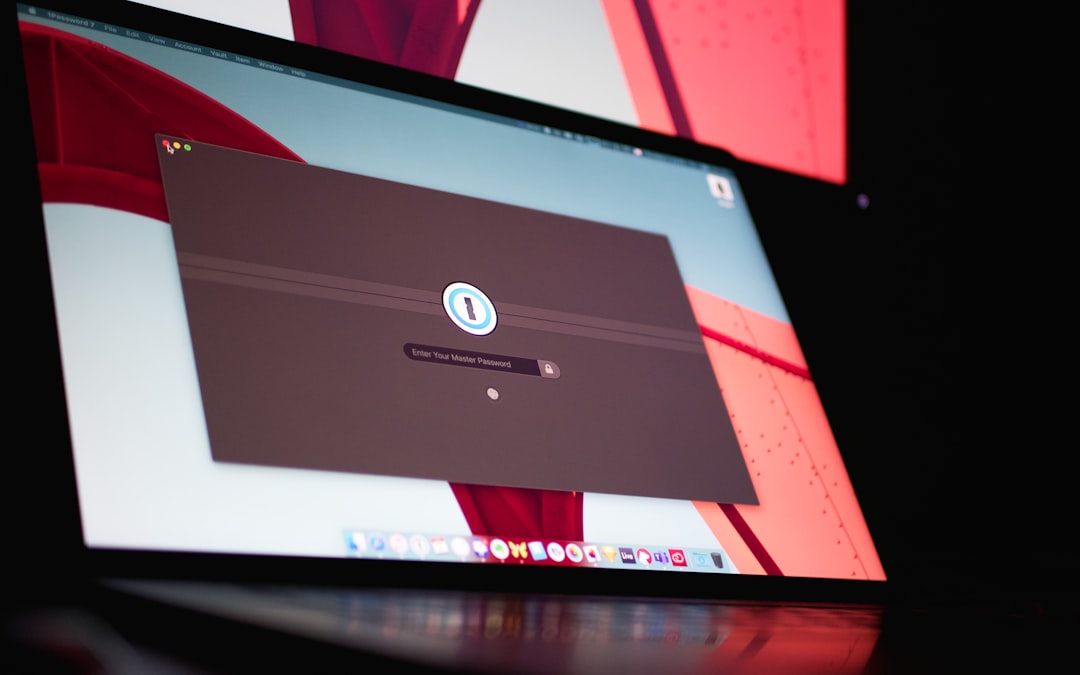
Because Interfolio contains sensitive academic and professional documents, protecting login credentials is essential.
- Use strong passwords with a mix of letters, numbers, and symbols.
- Enable multi-factor authentication whenever possible.
- Avoid public Wi-Fi when accessing confidential materials.
- Log out after each session, especially on shared devices.
Institutions often have strict privacy policies to ensure faculty records remain secure.
How Applicants Sign In to Interfolio
Job applicants using Interfolio Faculty Search experience a slightly different process.
Creating an Applicant Account
Applicants usually receive instructions within a job posting. They may:
- Create a new Interfolio account.
- Log in with an existing account.
All materials—including CVs, cover letters, and reference letters—are submitted through the applicant dashboard.

Letter Writers
Recommendation letter writers typically receive an email invitation. They do not always need a full Interfolio account. Instead, they access a secure link where they upload letters directly.
Tips for First-Time Users
First-time users often feel uncertain navigating an academic administrative system. These tips make the experience smoother:
- Access Interfolio through the official university website.
- Bookmark the correct login page for future use.
- Store login credentials in a secure password manager.
- Review any onboarding materials provided by the institution.
Mobile vs Desktop Login
Interfolio is optimized for desktop use, especially for administrative tasks like reviewing cases. While mobile access is possible, performance may vary depending on screen size and browser compatibility.
Best Practice: Use a desktop or laptop computer when completing detailed submissions, uploading documents, or reviewing multiple files.
When to Contact Support
If troubleshooting steps fail, contacting support is the next step.
Users can seek help from:
- Their institution’s IT department.
- The academic affairs or faculty services office.
- Interfolio’s official support team.
Providing detailed information—such as screenshots and exact error messages—speeds up resolution time.
Frequently Asked Questions (FAQ)
1. Is Interfolio login the same for every university?
No. Most universities use Single Sign-On (SSO), but the access route may differ. Some institutions provide unique login links through their internal portals.
2. Can someone log into Interfolio without an institutional affiliation?
Yes. Job applicants and letter writers can log in using a direct email-based Interfolio account.
3. What should a user do if they forgot which email they used?
They should search their inbox for past Interfolio emails or contact their institution’s administrator to verify the registered address.
4. Why does Interfolio keep redirecting to a university login page?
This typically happens when the account is tied to an institutional SSO. Users must authenticate using their campus credentials.
5. Is there a mobile app for Interfolio login?
Interfolio primarily functions through web browsers. While it can be accessed on mobile devices, a dedicated app may not be required or available for all services.
6. How long does a login session stay active?
Session duration varies by institution. For security reasons, sessions may expire after periods of inactivity.
7. What happens if an account is locked?
Accounts may lock after multiple failed login attempts. Users should wait for the cooldown period or reset their password. Institutional accounts may require IT assistance.
8. Is Interfolio secure?
Yes. Interfolio uses strong encryption and institutional authentication systems to protect sensitive academic data.
9. Can users access multiple institutions with one account?
In some cases, yes. However, each affiliation may require separate authentication depending on institutional configuration.
10. Where can users get official help documentation?
Users can access official guides through Interfolio’s support website or their institution’s faculty services page.
By understanding the login process and following best practices, users can access Interfolio efficiently and securely. Whether submitting tenure documents, managing faculty searches, or applying for academic roles, mastering the sign-in process ensures uninterrupted access to essential academic tools.