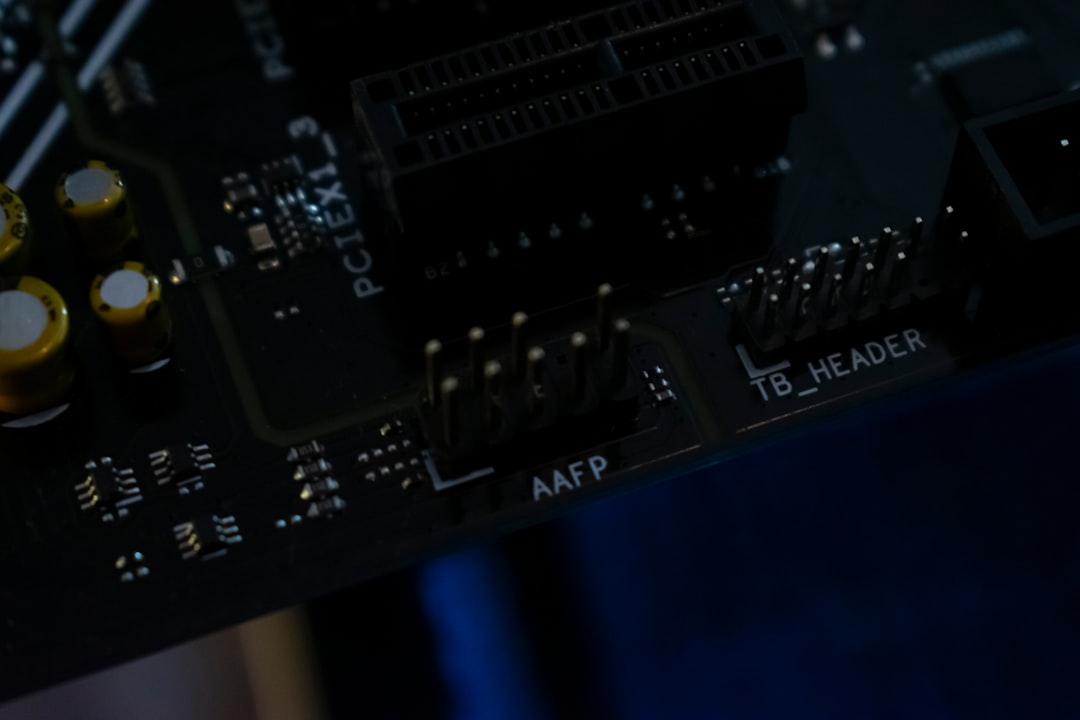
The MPUException “No MPUs Detected” error can appear suddenly and prevent applications, servers, or systems from functioning properly. It often signals that the software expects to detect one or more MPUs (Microprocessor Units or Motion Processing Units, depending on the environment) but cannot find them. This issue commonly affects gaming servers, Java-based platforms, embedded systems, and certain hardware-dependent applications. Fortunately, resolving it usually involves structured troubleshooting rather than complex repairs.
TL;DR: The “No MPUs Detected” error happens when software cannot detect required processing units or hardware modules. Fixing it typically involves checking hardware connections, updating drivers or firmware, verifying system settings, reviewing software configuration files, and reinstalling or resetting affected components. Most users resolve the issue within five systematic steps. Following a structured diagnostic process prevents unnecessary hardware replacement.
Understanding the MPUException Error
An MPUException is typically thrown by software when it attempts to initialize or communicate with a required MPU module and fails. The problem may occur due to:
- Disconnected or faulty hardware
- Incorrect BIOS or firmware settings
- Outdated or corrupted drivers
- Misconfigured server or application files
- Compatibility issues after an update
Before applying fixes, it is important to determine whether the issue is hardware-related or software-related. Reviewing system logs is often the first indicator of where the fault lies.
Step 1: Verify Hardware Connections and Physical Components
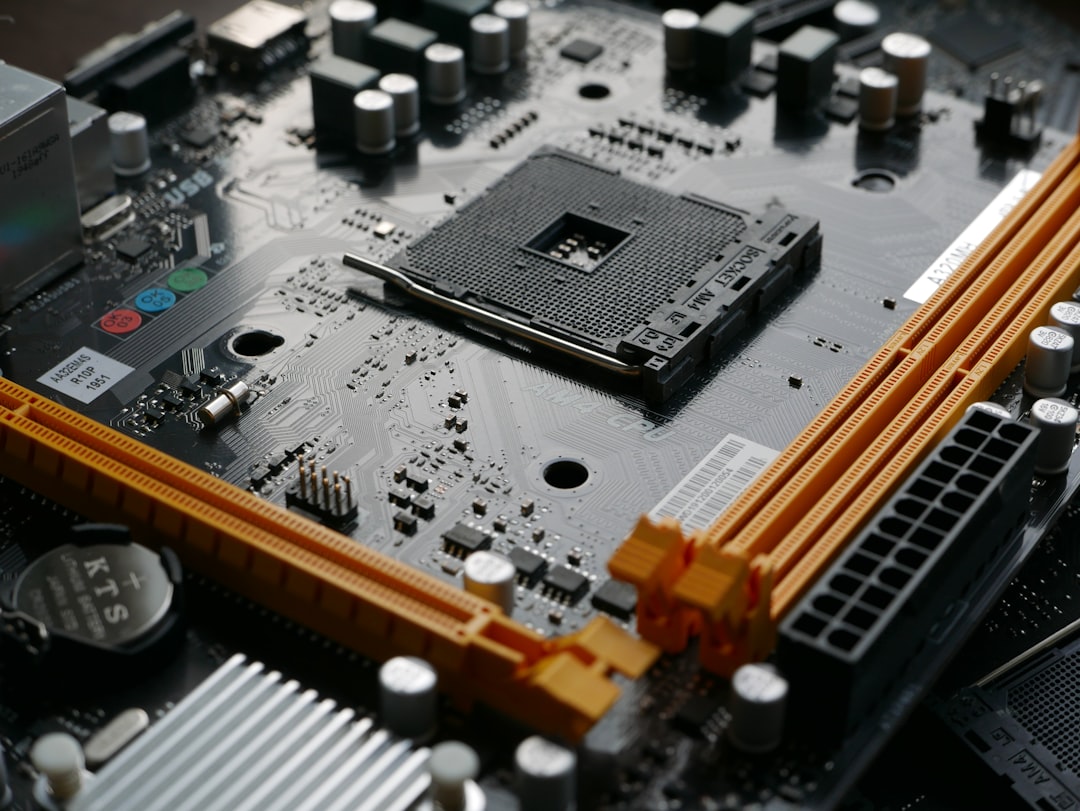
The first and most critical step is checking whether the MPU hardware is physically connected and functioning. In systems relying on embedded MPU chips or add-on modules, vibration, dust, or improper installation can prevent detection.
What to Check:
- Ensure all internal cables are firmly seated.
- Inspect motherboard slots for visible damage.
- Look for bent pins or burned circuitry.
- Confirm the MPU module is properly installed.
If the system uses an external MPU device, disconnect it and reconnect it securely. Testing the component on another compatible system can confirm whether the problem lies with the hardware itself.
Tip: If users recently upgraded their hardware, the new component may not be fully compatible with the existing board or firmware.
Step 2: Update or Reinstall Drivers and Firmware
Outdated drivers are among the most common causes of detection failures. When software cannot properly communicate with hardware, it often triggers MPUException errors.
Driver Update Process:
- Open Device Manager (Windows) or system hardware manager.
- Locate the MPU-related device or unknown devices.
- Select Update Driver.
- Install the latest version from the manufacturer’s official website.
For embedded or motherboard-integrated MPUs, updating the BIOS or firmware may resolve the issue. Users should exercise caution and follow official update instructions to prevent bricking the device.
Step 3: Check BIOS or System Configuration Settings
In many cases, MPUs are disabled in BIOS settings after updates or resets. If disabled, the operating system will not detect the unit, triggering the exception.
How to Verify:
- Restart the computer.
- Enter BIOS/UEFI (usually by pressing Del, F2, or F12).
- Locate advanced chipset or processor settings.
- Ensure the MPU option is set to Enabled.
After enabling the setting, save changes and reboot the system. Many users find the error resolves immediately after re-enabling hardware modules in BIOS.
Step 4: Review Application or Server Configuration Files
If the hardware is functioning correctly, the next step is investigating the software environment. Gaming servers, Java applications, and embedded control systems often rely on configuration files that specify hardware modules.
Corrupted or misconfigured files can prevent proper detection.
Common Fixes:
- Open configuration files and verify correct module references.
- Ensure device IDs match actual hardware identifiers.
- Restore default configuration files from backup.
- Check server logs for detailed exception traces.
For example, Minecraft or game server administrators should carefully inspect plugin or mod configuration entries referencing MPU modules. A missing dependency can also cause detection failure.
Pro Tip: Reviewing the application’s log file often reveals whether the system failed during initialization, driver handshake, or hardware polling.
Step 5: Reinstall the Affected Software or Reset the System
If none of the above steps resolve the issue, reinstalling the application may be necessary. Corrupted system files, incomplete updates, or conflicting patches can cause MPU detection routines to fail.
Recommended Procedure:
- Uninstall the affected program completely.
- Delete residual configuration folders.
- Restart the system.
- Download the latest stable version from the official source.
- Perform a fresh installation.
For embedded systems or development boards, users may need to reflash firmware entirely. Always back up important data before performing system resets.
Comparison of Diagnostic Tools
Different tools help diagnose the “No MPUs Detected” error depending on whether it is hardware- or software-based. The table below compares commonly used options:
| Tool | Best For | Ease of Use | When to Use |
|---|---|---|---|
| Device Manager | Driver issues | Easy | When device not recognized |
| BIOS/UEFI Setup | Hardware enablement | Moderate | After system updates or resets |
| Firmware Update Utility | Embedded MPU firmware problems | Advanced | If drivers do not resolve issue |
| Server Console Logs | Application-level errors | Easy | For server or gaming environments |
| Hardware Diagnostic Software | Physical hardware testing | Moderate | If hardware failure suspected |
Common Causes Summarized
- Hardware not seated correctly
- Outdated drivers
- Disabled BIOS settings
- Configuration file corruption
- Incomplete updates
By following the five-step method above, users systematically eliminate each possible cause instead of guessing or replacing components unnecessarily.
Preventing the Error in the Future
Prevention is often simpler than repair. To avoid encountering MPUException errors again:
- Keep drivers and firmware updated regularly.
- Create restore points before major updates.
- Back up configuration files before editing.
- Avoid abrupt shutdowns that corrupt files.
- Use officially supported hardware modules.
Routine system maintenance dramatically reduces the likelihood of detection failures.
Conclusion
The MPUException “No MPUs Detected” error may initially seem intimidating, but it is typically caused by straightforward hardware or configuration problems. By systematically checking physical connections, updating drivers, verifying BIOS settings, reviewing configuration files, and reinstalling software when necessary, users can resolve the issue efficiently. Careful logging and structured troubleshooting are the keys to success. Most importantly, users should resist immediately replacing hardware without completing proper diagnostics first.
Frequently Asked Questions (FAQ)
1. What does “No MPUs Detected” mean?
It means the application or system attempted to locate one or more required processing units but failed to detect them during initialization.
2. Is this error always hardware-related?
No. While it can indicate faulty hardware, it is often caused by driver issues, disabled BIOS settings, or misconfigured software files.
3. Can outdated drivers really cause MPU detection failures?
Yes. If the driver cannot properly communicate with the hardware, the system may interpret the unit as missing.
4. Should the BIOS be updated to fix the problem?
Only if other steps fail and the motherboard manufacturer specifically provides a fix. BIOS updates should be performed cautiously.
5. How can users confirm whether the MPU is physically damaged?
They can test the component in another compatible system or use hardware diagnostic tools designed for the device.
6. Will reinstalling the operating system fix the error?
It may, but it should be considered a last resort after hardware and driver troubleshooting steps have been completed.
7. Is professional repair necessary?
In most cases, no. Systematic troubleshooting resolves the issue. However, if physical motherboard damage is suspected, professional evaluation may be required.