If you are looking at an iBUYPOWER desktop tower and wondering whether it has an SD card slot, the most accurate answer is: it depends on the specific model, case, and configuration. iBUYPOWER sells many different gaming desktops, and the company often uses different tower cases across its product lines. Some older or specially configured systems may include a front-panel media card reader, but many modern iBUYPOWER gaming towers do not include a built-in SD card slot by default.
TLDR: Most iBUYPOWER towers do not reliably come with a built-in SD card slot, especially newer gaming-focused models. You should check the front panel, top panel, product specifications, or original case model to confirm. If your tower does not have one, the simplest solution is to use a USB SD card reader. For frequent photo or video transfers, an internal card reader can also be installed in some cases.
Why There Is No Single Answer
iBUYPOWER is not a single desktop model; it is a system builder that sells many different PC configurations. Two computers can both be called “iBUYPOWER towers” while using completely different cases, motherboards, front I/O layouts, and accessory options. Because of that, one iBUYPOWER tower may have an SD card reader, while another may only have USB ports, audio jacks, and power controls.
This is especially true because iBUYPOWER systems are often sold through retailers such as Best Buy, Costco, Amazon, Walmart, and directly through iBUYPOWER’s own website. Retail configurations can vary by year and promotion. A tower sold in 2018 may have a different front panel than a similar-looking tower sold in 2024. Even the same internal processor or graphics card does not guarantee the same exterior ports.
In general, gaming towers have moved away from built-in SD card readers. Modern cases often emphasize airflow, tempered glass, RGB lighting, and clean front-panel design. SD card slots are more common on laptops, professional workstations, and older desktop cases than on current gaming PCs.
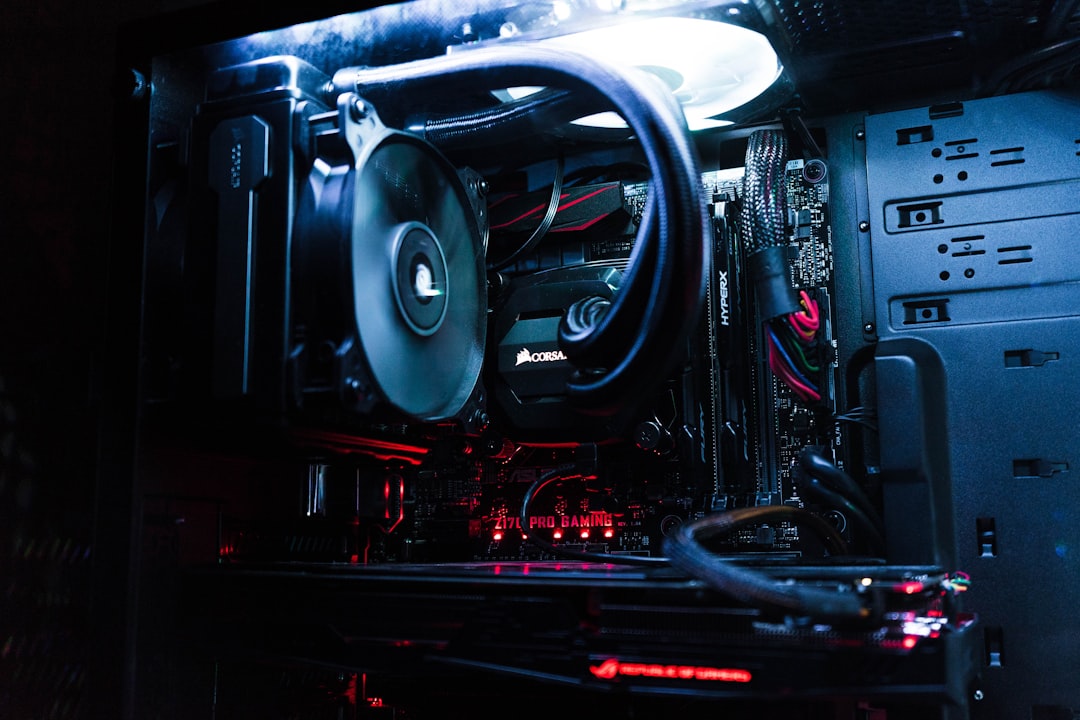
Where to Look for an SD Card Slot on an iBUYPOWER Tower
If you already have the tower in front of you, a physical inspection is the fastest way to answer the question. An SD card slot is usually a narrow horizontal slot, roughly the width of a standard SD memory card. It may be labeled SD, SDHC, SDXC, or simply appear as a thin opening near the USB ports.
Check these areas carefully:
- Top panel: Many gaming towers place USB ports and audio jacks on the top front edge. If there is a card reader, it may be located here.
- Front panel: Some towers have ports on the front face, sometimes behind a small door or flap.
- 5.25 inch drive bay area: Older towers may include a card reader mounted where an optical drive would normally go.
- Side or angled front edge: Certain cases place I/O ports along a beveled side edge rather than flat on the front.
If you only see USB Type-A ports, a USB Type-C port, headphone and microphone jacks, a power button, and possibly an LED control button, then the tower most likely does not have a built-in SD card slot.
How to Check the Product Specifications
If you are shopping online or cannot easily inspect the tower, look at the official product specifications. However, you should read them carefully. Retail listings often highlight the processor, graphics card, RAM, and storage, but they may not provide detailed information about every front-panel connector.
Look for phrases such as:
- Media card reader
- SD card reader
- Multi card reader
- Front I/O
- Front panel ports
- Case specifications
If the listing does not explicitly mention an SD card reader, you should not assume that one is included. Product photos can help, but they are not always final or exact, particularly for prebuilt gaming desktops where case revisions may occur. The most reliable sources are the system’s exact model page, the invoice configuration, the case manufacturer’s page, or iBUYPOWER support.
Why Many iBUYPOWER Towers Do Not Include SD Card Slots
The absence of an SD card slot is not necessarily a flaw. It reflects a broader trend in desktop gaming PC design. Most gamers connect accessories through USB, and many users now transfer files through cloud storage, phones, external drives, or direct camera cables. As a result, case manufacturers often prioritize USB ports over dedicated card slots.
There are also practical reasons. Built-in card readers require additional internal cabling and occupy space on the case. They can add cost, introduce another potential failure point, and may not be used by a large share of gaming PC buyers. For users who only occasionally read SD cards, an inexpensive USB reader is usually more flexible.
That said, photographers, videographers, drone pilots, content creators, and musicians may still rely heavily on SD or microSD cards. For those users, the lack of a built-in slot can be inconvenient, but it is easy to solve.
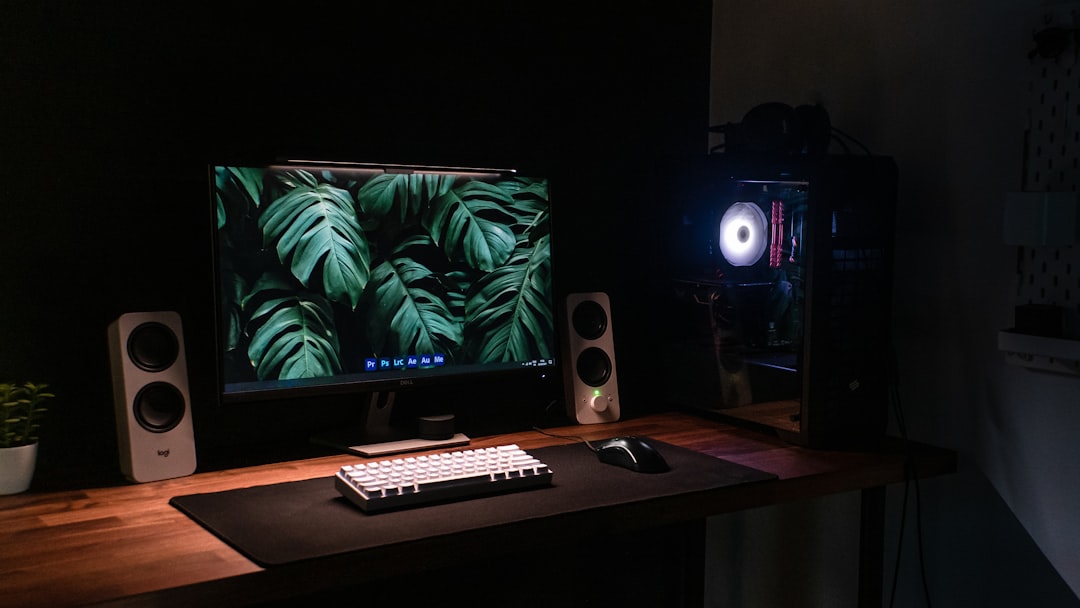
The Easiest Solution: Use a USB SD Card Reader
If your iBUYPOWER tower does not have an SD card slot, the simplest option is a USB SD card reader. These small adapters plug into a USB port and provide one or more memory card slots. Many support standard SD cards, microSD cards, and high-capacity formats such as SDHC and SDXC.
A USB reader has several advantages:
- Low cost: Basic models are inexpensive and widely available.
- Easy setup: Most are plug and play, requiring no special installation.
- Portability: You can use the same reader with laptops and other desktops.
- Upgrade flexibility: You can choose a faster reader later if your workflow changes.
- Compatibility: Many readers support multiple card types, including microSD.
For best performance, use a reader that matches the speed of your card and the USB port on your tower. If you work with large 4K video files or high-resolution RAW photo collections, consider a USB 3.0, USB 3.1, or USB-C reader. A slow reader can bottleneck file transfers even if the memory card itself is fast.
Can You Add an Internal SD Card Reader?
In some cases, yes. If your iBUYPOWER tower has an available external drive bay or a suitable front-panel opening, you may be able to install an internal card reader. These devices are usually mounted in a 3.5 inch or 5.25 inch bay and connect to the motherboard through an internal USB header.
However, many modern gaming cases do not include external drive bays. Tempered glass and mesh-front cases are often designed without any front-facing expansion slots. If your case has no bay or cutout, installing an internal reader may not be practical without modification.
Before buying an internal card reader, confirm the following:
- Your case has a compatible bay or mounting location.
- Your motherboard has an available internal USB header.
- The reader supports the card formats you need.
- You are comfortable opening the computer case.
- Installation will not interfere with warranty terms or support expectations.
If you are unsure, a USB external reader is usually the safer choice. It avoids compatibility issues and does not require opening the tower.
What About MicroSD Cards?
Many people ask about SD card slots when they actually use microSD cards from phones, action cameras, drones, handheld gaming devices, or dash cameras. A full-size SD card slot will not accept a microSD card unless you use an adapter. Conversely, many USB readers include both SD and microSD slots, making them more convenient than a built-in full-size SD slot.
If you frequently use microSD cards, choose a reader with a dedicated microSD slot. This reduces wear on adapters and makes transfers faster and more convenient. Also check whether the reader supports high-capacity formats, especially if you use 128 GB, 256 GB, 512 GB, or larger cards.
How Windows Handles an SD Card Reader
On an iBUYPOWER tower running Windows, an SD card reader generally appears like a removable drive. After inserting the card, Windows should assign it a drive letter and show it in File Explorer. If nothing appears, the issue may be the reader, the card, the USB port, or the file system on the card.
Useful troubleshooting steps include:
- Try a different USB port on the tower.
- Test the SD card in another device.
- Restart the computer with the reader connected.
- Open Disk Management to see whether the card is detected.
- Check for bent contacts, dust, or physical damage.
If the card contains important photos or videos, avoid formatting it until you are certain the data is backed up or recoverable.

How to Confirm Before Buying an iBUYPOWER Tower
If an SD card slot is important to you, confirm it before placing an order. Do not rely only on general assumptions about the brand. Instead, identify the exact model number or configuration name and inspect the listed front I/O ports. If the retailer’s information is vague, contact iBUYPOWER or the seller directly and ask whether the specific unit includes a built-in SD card reader.
A good question to ask is: “Does this exact iBUYPOWER desktop model include a built-in SD or microSD card reader on the case?” The phrase “this exact model” matters because similar systems may use different cases.
Final Verdict
So, does the iBUYPOWER tower have an SD card slot? Some may, but most current iBUYPOWER gaming towers should not be assumed to have one. The only reliable answer comes from checking the exact case, product specifications, or physical front panel of the machine.
For most users, the lack of a built-in SD card slot is easy to solve with a USB SD card reader. It is affordable, simple, and often more versatile than an internal slot. If you transfer media files every day, a higher-quality USB-C or USB 3.x reader is a worthwhile addition. If you want a cleaner permanent setup and your case supports it, an internal reader may also be possible. In short, an iBUYPOWER tower can work perfectly well with SD cards, but you may need an external or add-on reader depending on the model you own.